Support / CoreTrim
CoreTrim support.
Send a clear description of what happened and the macOS and Final Cut Pro versions you are using. Say whether the issue happened before or after importing the exported project, and include diagnostics whenever possible. Include the project name, the source export mode, and any source names that look wrong.

CoreTrim problem reports
Send diagnostics with your CoreTrim enquiry.
Diagnostics help us see the project structure, CoreTrim settings, source decisions, export result, and logs. They usually make a support request much faster to solve.
-
01
Leave the export folder in place.
If the issue happened after an export, keep the exported media folder and project export exactly where CoreTrim created them until support has reviewed the diagnostics.
-
02
Use CoreTrim's problem report command.
Use Help > Report a Problem in CoreTrim. CoreTrim saves a Diagnostics folder inside each export folder; send the folder from the export that had the problem.
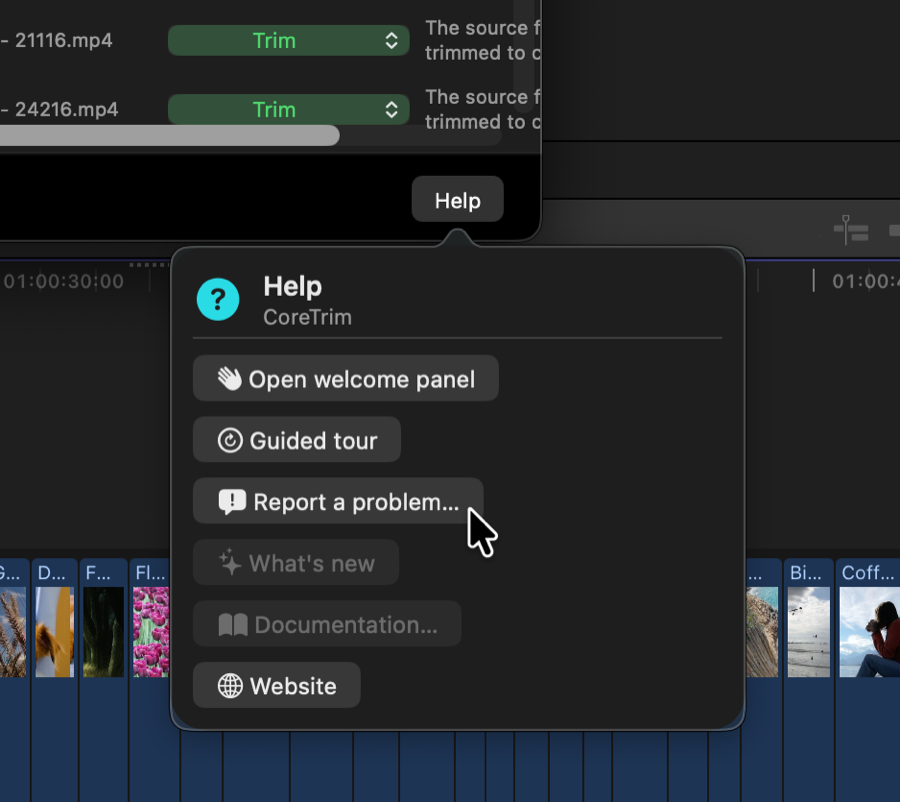
Help > Report a Problem — click to enlarge -
03
Describe what you saw.
Include the source export mode, the project name, what you expected, what actually happened, and whether Final Cut Pro imported the exported project successfully.
-
04
Attach the Diagnostics folder.
Send the complete Diagnostics folder with your email. Do not remove files from it; the original project data, exported project data, settings, logs, and decision summaries work together.
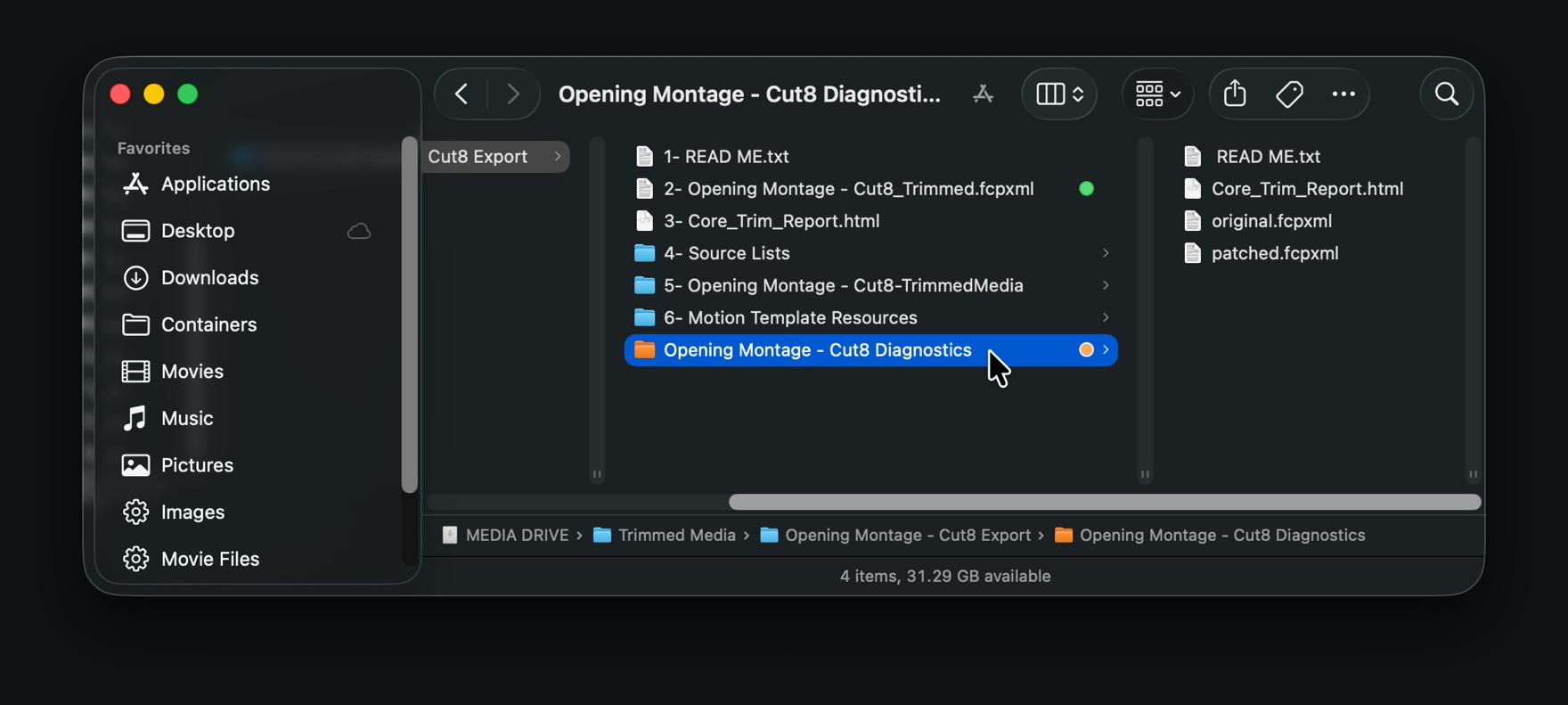
The Diagnostics folder and its contents — click to enlarge -
05
Do not send media unless requested.
Start with the Diagnostics folder. If a media file is needed, support will ask for the smallest specific source that reproduces the issue.
Before deleting original media
Import the exported CoreTrim project into Final Cut Pro, confirm it is online, read the export report, and check for skipped sources. Clips that use a skipped source import as offline; CoreTrim never links them back to your original files.