FAQ CoreTrim
Questions courantes sur l'Exportation des sources de CoreTrim.
CoreTrim est une extension de flux de travail pour Final Cut Pro. Ce n'est pas une application de bureau distincte. Final Cut Pro doit être installé sur votre Mac. Ces réponses couvrent l'utilisation de base, la sécurité des médias, les rapports et l'assistance.


Utilisation de base
Que fait CoreTrim ?
CoreTrim résout un problème que rencontre chaque monteur : réduire la taille des médias d'un projet. Pour cela, il examine chaque fichier source du projet et élimine les parties qui ne sont pas utilisées.
Votre montage et vos sources d'origine restent intacts, tandis que CoreTrim crée un double exact de votre projet qui utilise les fichiers sources réduits. En résumé : vous économisez en général énormément d'espace de stockage.
Puis-je transmettre un export CoreTrim à un autre monteur, ou l'archiver ?
Oui — c'est précisément pour cela qu'il est conçu. Chaque export est un dossier unique et autonome : les médias réduits (ou copiés) et un projet Final Cut Pro re-lié qui ne pointe que vers ce dossier, jamais vers vos fichiers d'origine. Posez-le sur un disque d'archivage, ou envoyez le dossier à un collaborateur ; il importe le projet et celui-ci se reconstruit à partir des médias qu'il contient, sans rien à reconnecter. Et comme l'export ne représente qu'une fraction de la taille des médias d'origine, il est bien plus facile à déplacer, à téléverser ou à stocker.
CoreTrim travaille-t-il directement sur ma bibliothèque Final Cut Pro ?
Non. Votre bibliothèque n'est jamais modifiée par CoreTrim. Lorsque vous glissez votre projet sur la fenêtre de CoreTrim, celui-ci obtient de Final Cut Pro toutes les données dont il a besoin. Il ne modifie pas votre bibliothèque active, vos événements, vos projets ni vos timelines.
Quel est le flux de travail de base ?
CoreTrim s'exécute dans Final Cut Pro. Lorsque vous glissez un projet depuis un événement Final Cut Pro sur la fenêtre de CoreTrim, celui-ci :
- Repère tous les fichiers sources utilisés par ce projet.
- Détermine quelles parties de ces fichiers sources le projet utilise réellement.
- Élimine les portions inutilisées de chaque fichier média, lorsque c'est possible.
- Exporte de nouveaux fichiers médias réduits.
- Crée un nouveau fichier de projet Final Cut Pro qui pointe vers les médias réduits exportés.
En chemin, vous choisissez Sources réduites ou Sources complètes dans le menu Exportation des sources, vous définissez la longueur des poignées et vous vérifiez la liste des sources avant l'export. Une fois l'export terminé, importez le nouveau projet dans Final Cut Pro.
Le projet réduit ne pèse généralement qu'une fraction de la taille de l'original, ce qui vous fait gagner beaucoup d'espace de stockage et rend les projets bien plus faciles à partager.
Dois-je vider la grille entre deux projets ?
Cela peut aider. CoreTrim peut exporter plusieurs projets au cours d'une même session, mais vider la liste rend chaque projet plus facile à vérifier.
Modes d'Exportation des sources
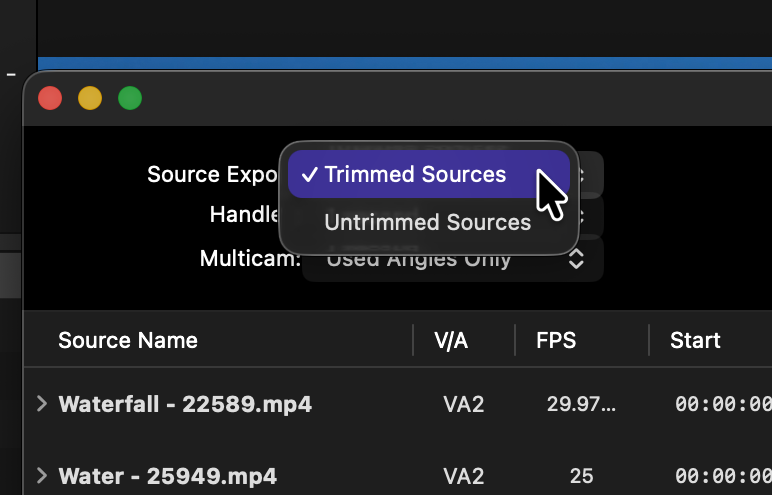
Quelle est la différence entre Sources réduites et Sources complètes ?
Lorsque vous choisissez Sources réduites dans le menu Exportation des sources, CoreTrim élimine les portions inutilisées de chaque fichier source compatible de votre montage, ce qui réduit fortement la taille des médias de votre projet. Chaque fichier réduit conserve les parties utilisées par votre projet, plus les poignées que vous avez définies.
Lorsque vous choisissez Sources complètes, chaque fichier source est copié en entier au lieu d'être réduit.
Quand choisir Sources réduites ?
Choisissez Sources réduites quand vous voulez un export plus petit et que vous n'avez pas besoin des rushes inutilisés des fichiers sources originaux, ou quand vous êtes prêt à archiver votre projet ou à le partager avec un autre monteur, un étalonneur ou un graphiste.
Quand choisir Sources complètes ?
Choisissez Sources complètes quand un autre monteur ou une archive a besoin des fichiers sources entiers. Les sources complètes restent ainsi disponibles dans le projet exporté.
Pourquoi les menus poignées, multicam et état sont-ils désactivés en Sources complètes ?
Sources complètes copie des fichiers entiers. Les poignées et les choix de trim multicam ne servent à rien dans ce mode, donc CoreTrim verrouille ces réglages.
Sécurité
CoreTrim va-t-il modifier ou supprimer mes médias d'origine ?
Non. CoreTrim ne modifie, ne déplace, ne renomme, ne réécrit ni ne supprime vos fichiers médias originaux.
CoreTrim va-t-il modifier mon montage d'origine ?
Non. CoreTrim crée un nouvel export du projet que vous importez vous-même. Votre bibliothèque et votre projet Final Cut Pro d'origine restent inchangés.
Que se passe-t-il si CoreTrim ne peut pas réduire une source en toute sécurité ?
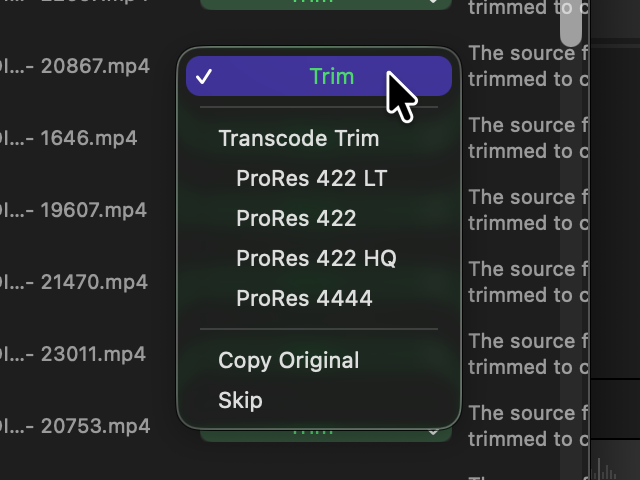
CoreTrim choisit une option plus sûre, généralement Copier l'original, quand le trim n'est pas sûr. Si une source ne peut être ni copiée ni exportée, CoreTrim vous le signale dans le rapport.
Dans la colonne État, que signifie Ignorer ?
Ignorer signifie que CoreTrim n'exportera pas cette source. Les plans qui utilisent des sources ignorées seront importés hors ligne dans Final Cut Pro. CoreTrim ne relie jamais les plans à vos fichiers médias originaux : une source ignorée laisse donc un plan hors ligne plutôt qu'un lien vers l'original. Vous pouvez relier ces plans manuellement dans Final Cut Pro si vous en avez besoin.
Final Cut Pro
CoreTrim est-il une application de bureau autonome ?
Non. CoreTrim est une extension de flux de travail pour Final Cut Pro. Vous devez avoir Final Cut Pro installé sur votre Mac pour l'ouvrir et l'utiliser.
Comment faire entrer un projet dans CoreTrim ?
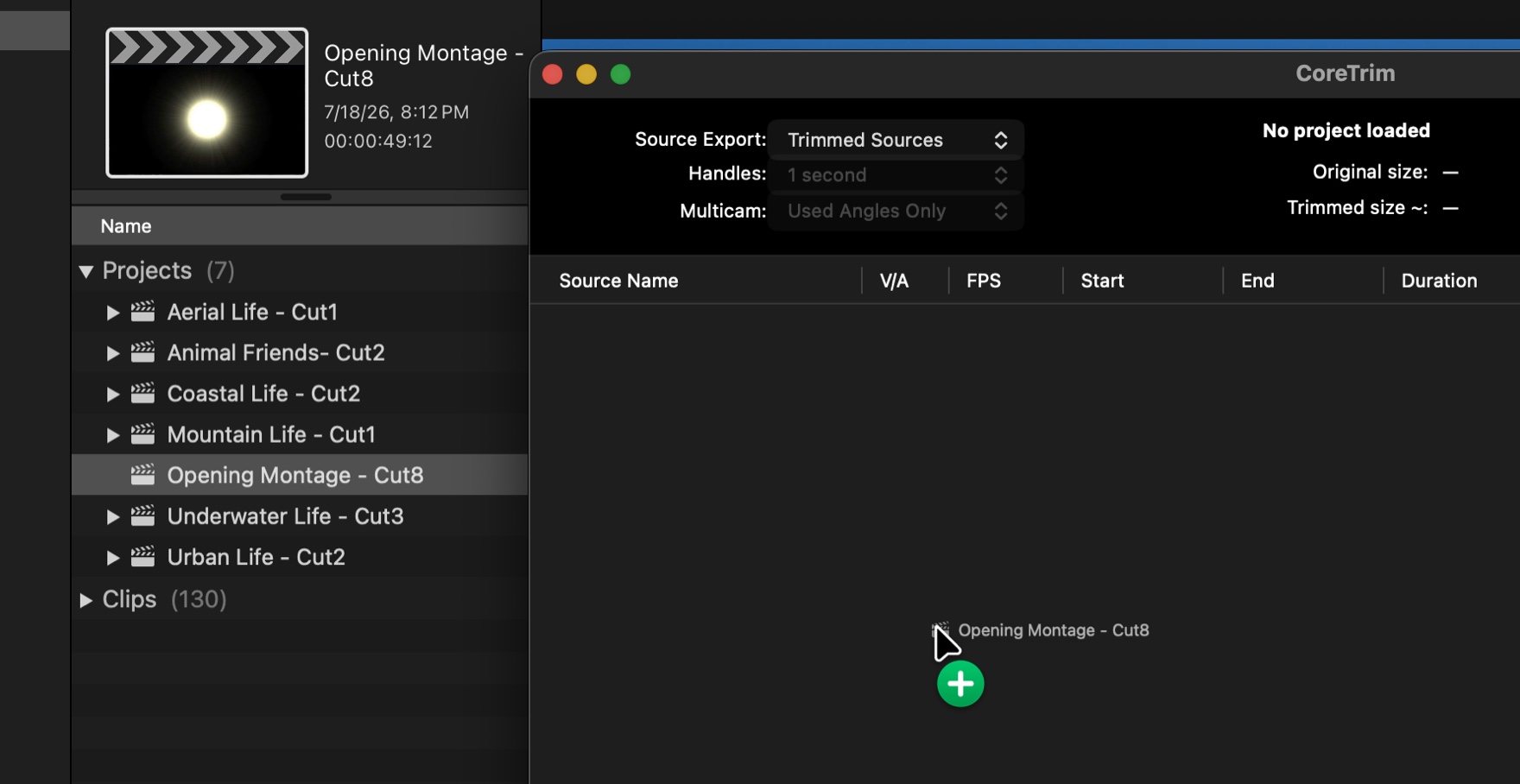
Ouvrez CoreTrim depuis Final Cut Pro. Puis glissez le projet directement depuis Final Cut Pro sur CoreTrim. Vous n'avez pas besoin d'exporter un FCPXML au préalable.
Comment utiliser le projet exporté ?
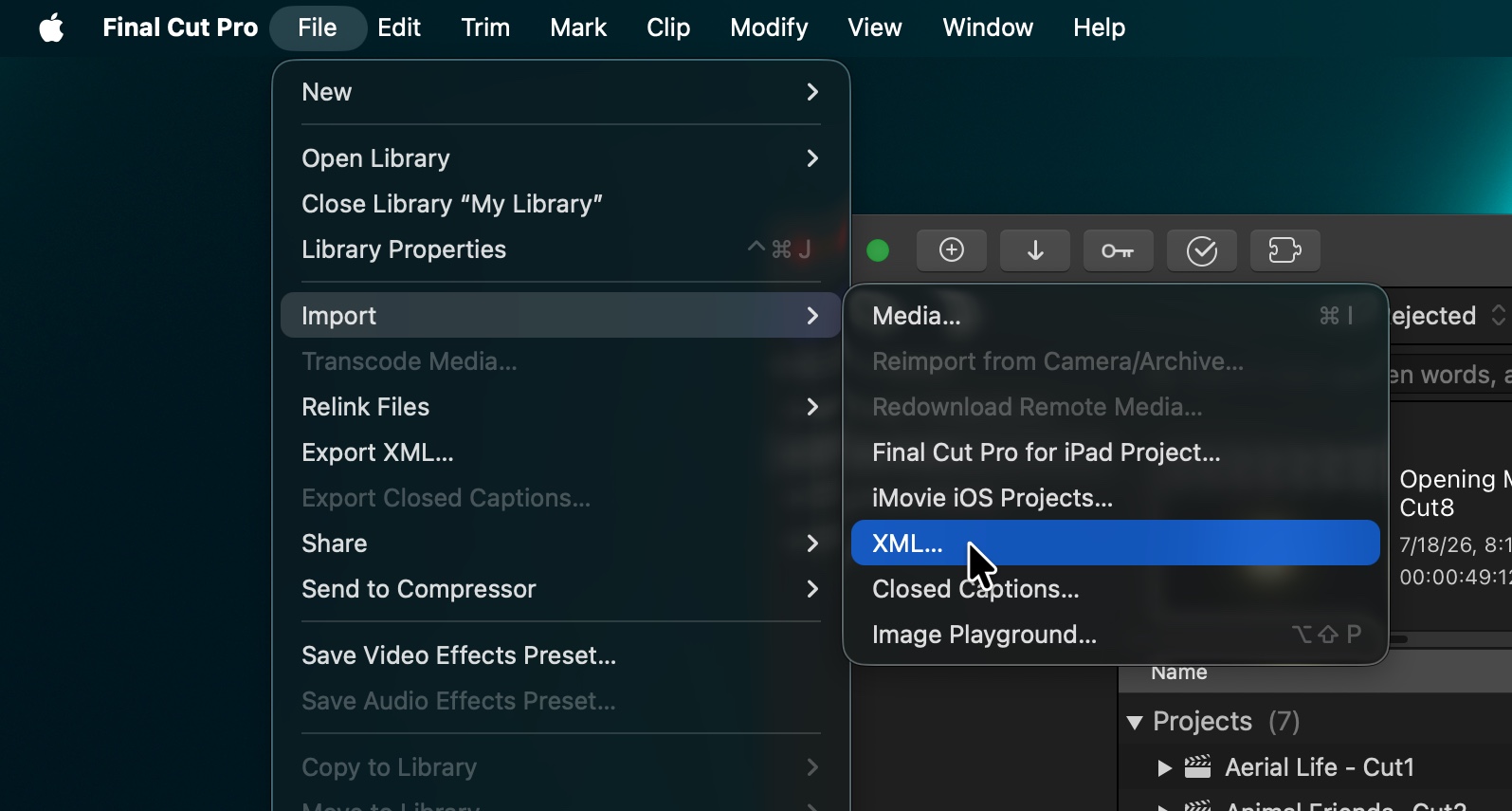
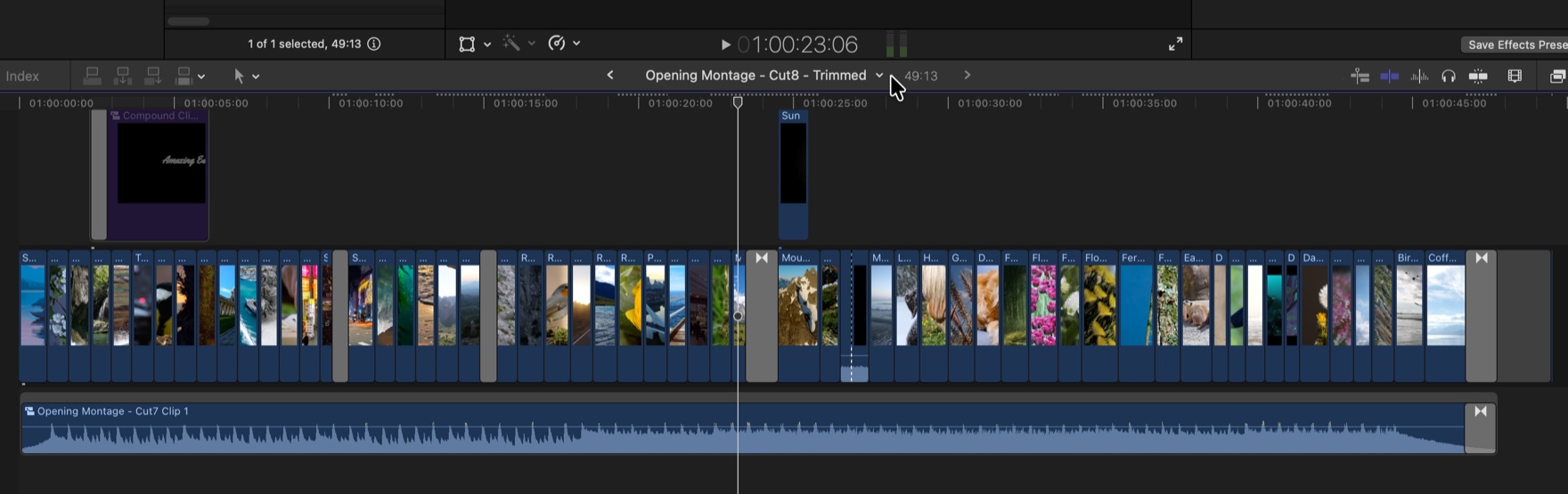
Réimportez le projet exporté dans Final Cut Pro. Le projet importé doit correspondre à votre montage d'origine, tout en pointant vers les nouveaux médias réduits créés par CoreTrim.
CoreTrim prend-il en charge les projets multicam ?
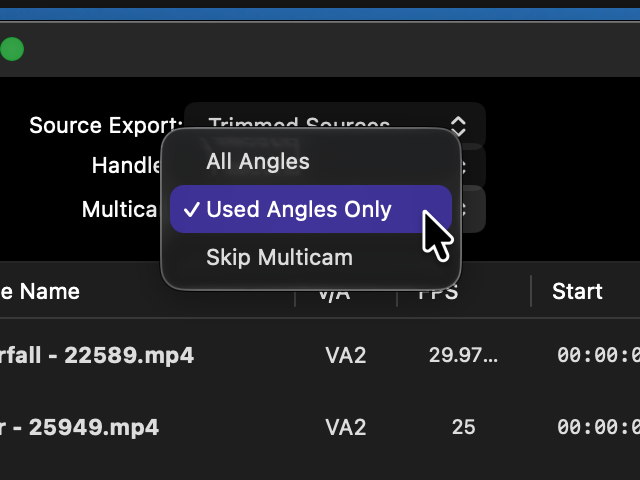
Oui. Lors d'un export en Sources réduites, le menu Multicam détermine quelle part de chaque clip multicam voyage. Le choix se fait projet par projet.
Uniquement les angles utilisés est le réglage par défaut. Seules les portions que chaque angle apporte réellement au montage sont exportées : les angles alternent le long de la timeline, un seul actif à la fois, exactement comme le montage se déroule. Lorsque CoreTrim ne peut pas déterminer quel angle est actif sur un plan, il conserve tous les angles pour ce plan plutôt que de deviner.
Tous les angles conserve chaque angle entier, pour que le projet puisse être remonté dans des années avec les mêmes possibilités qu'au premier jour. L'export est plus volumineux.
Ignorer multicam laisse les clips multicam liés à vos médias d'origine au lieu d'en exporter des copies réduites.
Le menu est désactivé pour les Sources complètes, qui copient de toute façon les fichiers entiers. La page de présentation de CoreTrim montre les deux options de réduction côte à côte.
Final Cut Pro peut-il refuser le fichier FCPXML de CoreTrim ou quitter pendant l'import ?
C'est Final Cut Pro qui pilote l'étape d'import. Si le projet exporté ne s'importe pas correctement :
- Quittez puis relancez Final Cut Pro, et refaites l'import.
- Libérez de la mémoire pour l'import en quittant les autres applications jusqu'à ce qu'il soit terminé.
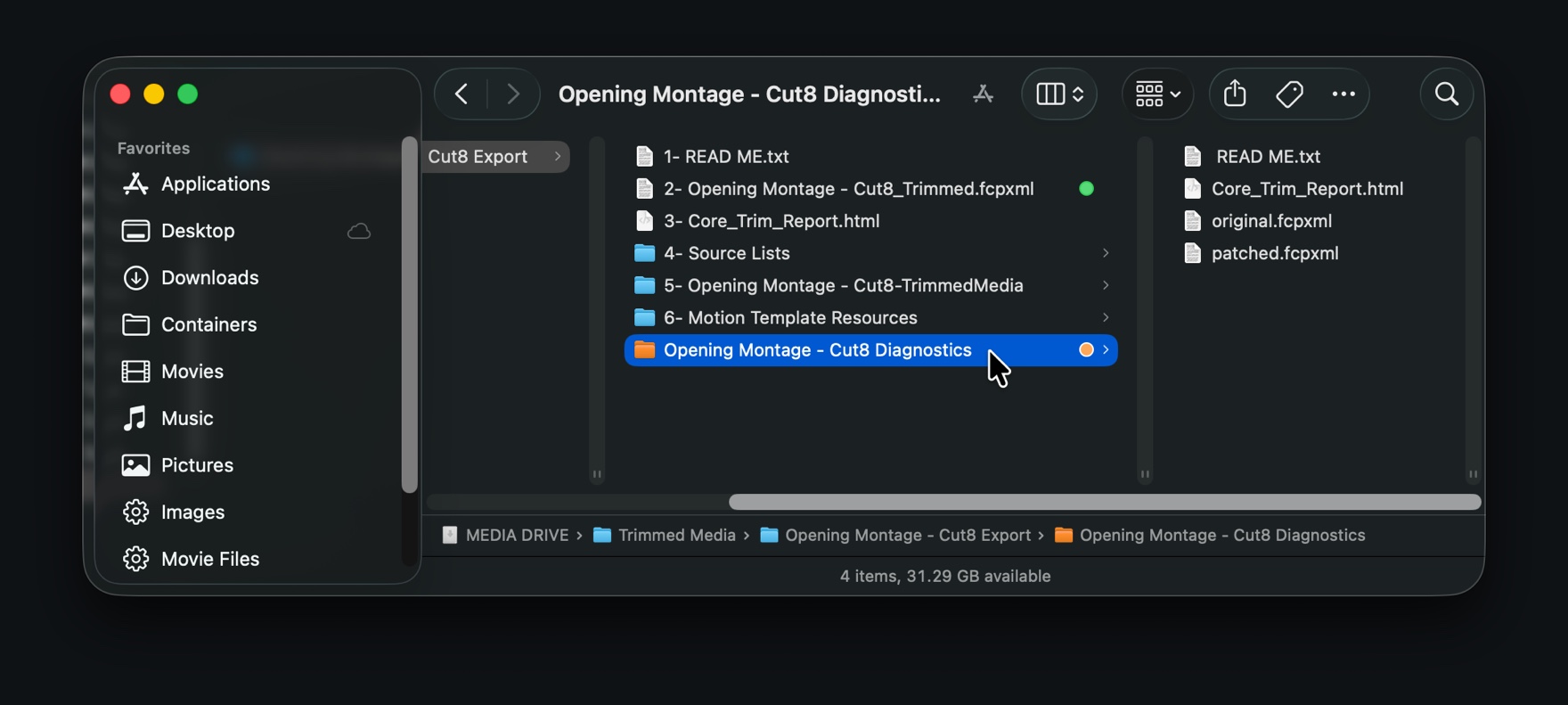
- Si l'import ne passe toujours pas, ouvrez le dossier d'export de cette session et repérez le dossier Diagnostics qu'il contient. Envoyez-nous ce dossier par e-mail avec une brève description de ce qui s'est passé.
CoreTrim crée un dossier Diagnostics dans chaque dossier d'export qu'il génère : cherchez-le à côté de vos médias exportés et de votre fichier de projet. Sur macOS 26 et versions ultérieures, il porte une étiquette orange dans le Finder. Il contient tout ce dont nous avons besoin pour trouver le problème, alors pensez bien à nous l'envoyer : support@edit-tools.com.
Effets, titres, générateurs et modules
CoreTrim copie-t-il les effets, titres, générateurs et transitions ?
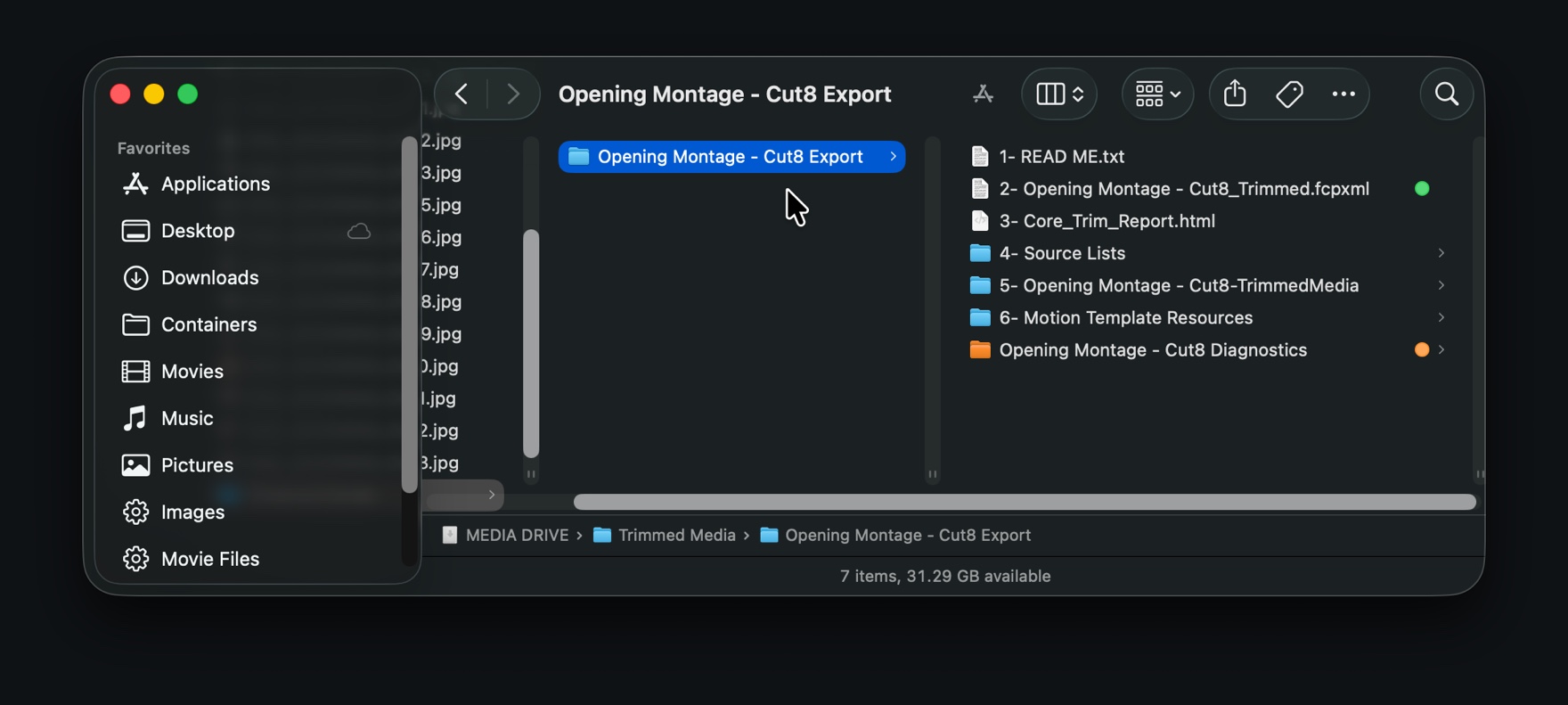
Les effets, titres, générateurs et transitions ne sont pas des fichiers sources ordinaires : CoreTrim ne les copie ni ne les réduit comme il le fait des plans caméra, des fichiers audio et des images fixes. Il conserve plutôt leurs références dans le projet exporté.
Tous les effets natifs de Final Cut Pro se présenteront exactement de la même façon après l'import.
Si le montage contient des effets tiers, ceux-ci devront être installés sur tout système où vous voulez lire votre montage.
Les modules tiers fonctionneront-ils encore après l'import ?
Oui, si les mêmes modules tiers sont installés et fonctionnels dans Final Cut Pro sur le Mac qui ouvre le projet exporté. CoreTrim peut conserver la référence au module. Il ne peut pas inclure un programme d'installation, ni forcer Final Cut Pro à utiliser un module qui n'est pas installé.
Que deviennent les modèles Motion ?
Certains effets, titres, générateurs et transitions de Final Cut Pro sont des modèles Motion. Si Final Cut Pro communique à CoreTrim l'emplacement réel du fichier d'un modèle Motion, CoreTrim peut copier ce modèle dans un dossier Motion Template Resources à l'intérieur de l'export. Le projet exporté pointe alors vers cette copie. Si Final Cut Pro ne donne à CoreTrim que le nom d'un modèle ou d'un module installé, CoreTrim conserve la référence et signale que l'élément doit être installé dans Final Cut Pro.
Pourquoi CoreTrim préserve-t-il certains effets au lieu de les copier ?
Beaucoup d'effets sont installés dans Final Cut Pro, dans Motion ou dans un paquet de modules tiers. Ce ne sont pas des fichiers médias ordinaires. Les copier pourrait poser des problèmes de licence, laisser de côté des fichiers de support nécessaires ou échouer sur un autre Mac. CoreTrim retient le choix le plus sûr : conserver la référence dans le projet et vous indiquer ce qui devra peut-être être installé dans Final Cut Pro.
Le projet exporté sera-t-il exactement identique à l'original ?
Il doit l'être dès lors que Final Cut Pro retrouve les mêmes effets, titres, générateurs, transitions, polices et modules que ceux du projet d'origine. S'il manque quelque chose sur le Mac qui importe l'export, Final Cut Pro peut signaler un effet ou un titre manquant, ou afficher un rendu différent. Importez et vérifiez toujours le projet exporté avant de supprimer des originaux ou de livrer le projet comme définitif.
Où voir ce que CoreTrim a fait des effets et des générateurs ?
Lisez le rapport d'export, un fichier HTML que CoreTrim écrit dans le dossier d'export. Il liste les modèles Motion copiés par CoreTrim, les effets installés que CoreTrim a conservés sous forme de références, et les avertissements sur les éléments à surveiller. Si un effet, un titre, un générateur ou une transition ne se présente pas correctement après l'import, envoyez le dossier Diagnostics de cet export avec votre e-mail à l'assistance.
Rapports et diagnostics
Que contient le dossier d'export ?
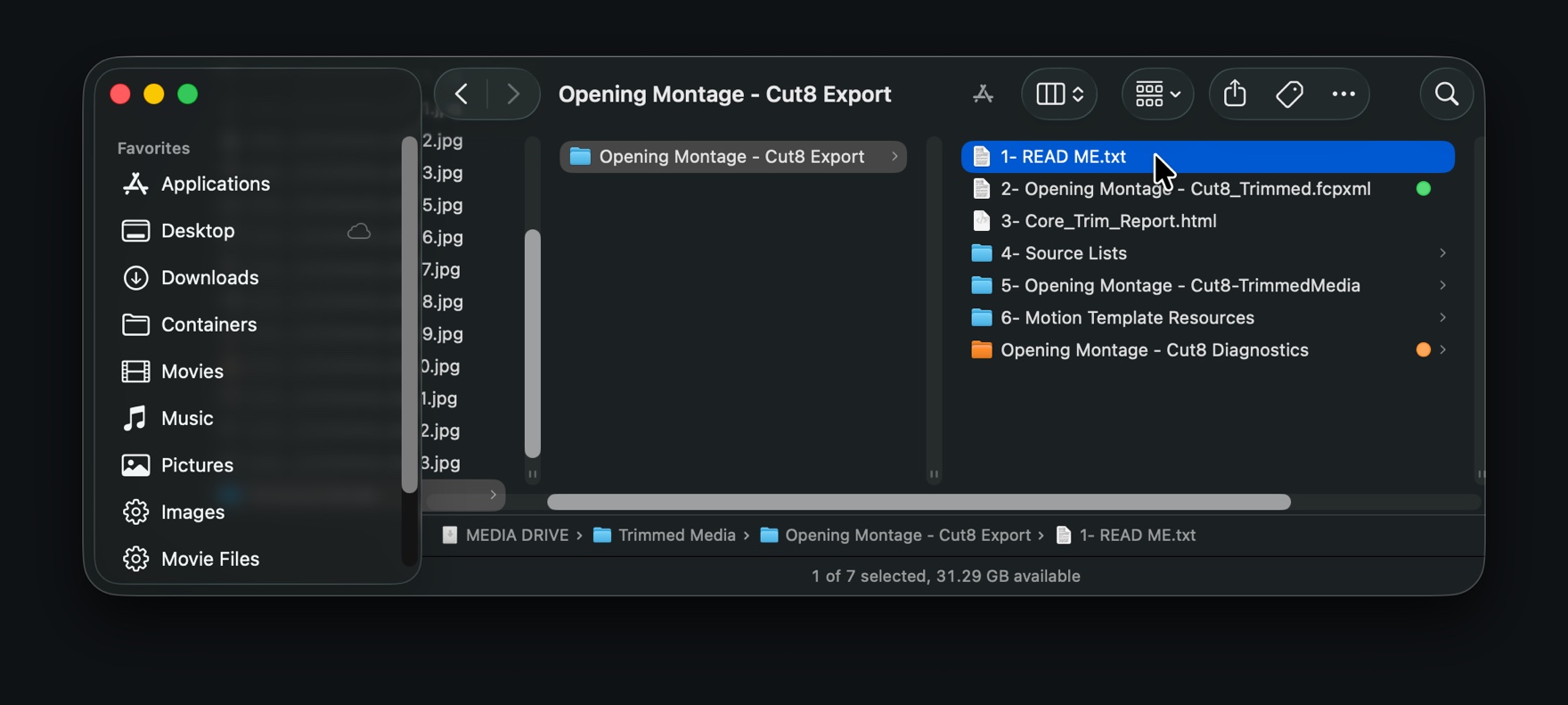
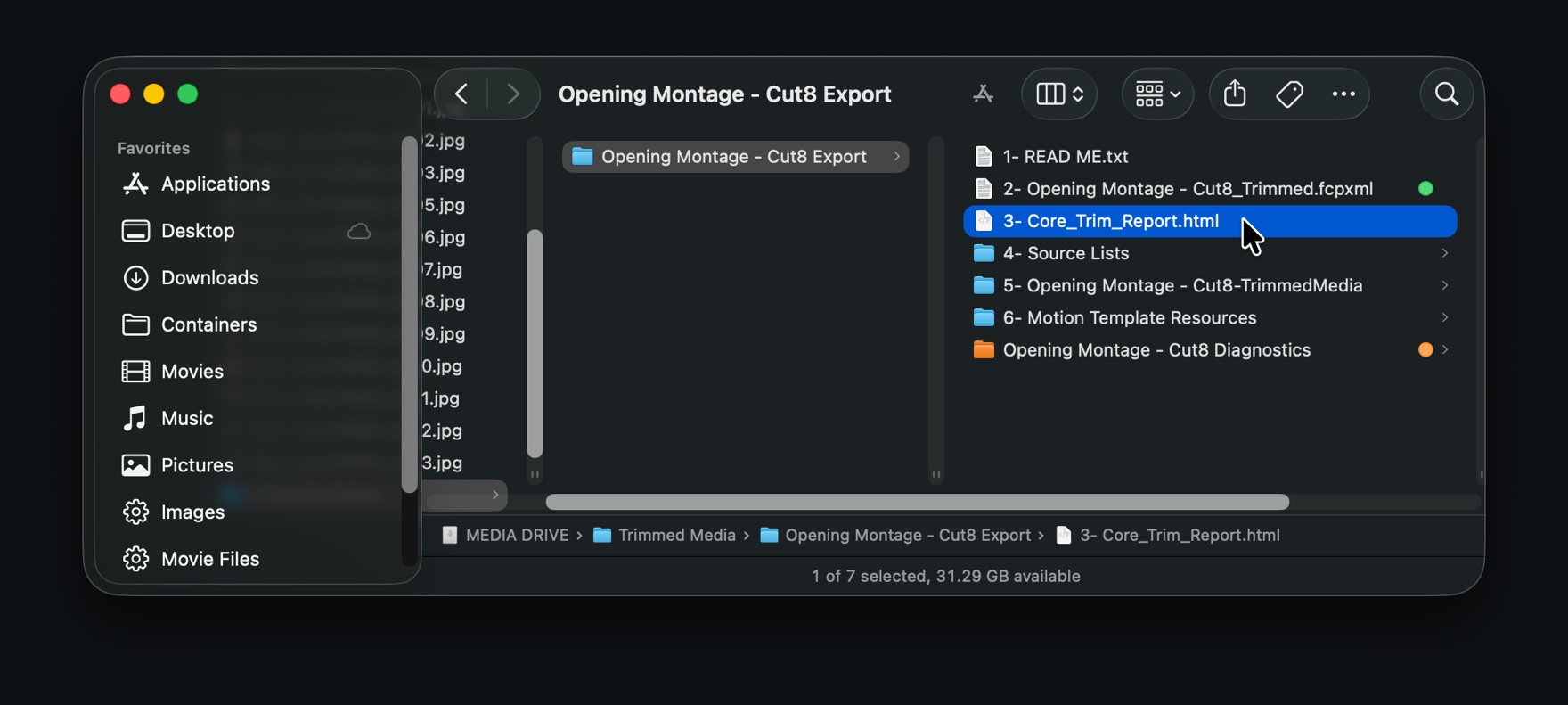
Tout ce que produit un export, numéroté dans l'ordre où vous en avez besoin : 1- READ ME.txt avec les instructions d'import, le fichier de projet 2- …_Trimmed.fcpxml que vous importez dans Final Cut Pro, 3- Core_Trim_Report.html, un dossier 4- Source Lists contenant une copie HTML et une copie CSV de la liste des sources, le dossier Trimmed Media qui contient tous les nouveaux fichiers de médias réduits, et 6- Motion Template Resources lorsque le projet utilise des modèles Motion locaux. Le dossier Diagnostics se trouve à côté. Le projet exporté ne renvoie qu'aux médias situés dans ce dossier : vous pouvez donc le déplacer ou l'archiver d'un seul bloc. Le guide détaille chaque élément avec des captures d'écran.
Que contient le rapport d'export ?
Le rapport explique comment CoreTrim a traité chaque fichier source de votre projet. Il présente les décisions prises sur les sources, les sources ignorées ou copiées, les avertissements, les estimations de stockage et la liste des sources du projet exporté.
Pourquoi conserver le rapport ?
Le rapport vous permet de confirmer quelles sources ont été réduites, copiées ou ignorées. Il est également utile pour partager le projet avec un autre monteur ou pour contacter l'assistance.
Quels diagnostics CoreTrim recueille-t-il ?
CoreTrim enregistre les données du projet, le fichier du projet exporté, les réglages, les décisions prises sur les sources, les résultats de l'export, les journaux et les informations système. Cela aide l'assistance à trouver les problèmes plus vite.
Problèmes et assistance
Que dois-je envoyer pour signaler un problème ?
Utilisez Aide > Signaler un problème dans CoreTrim. Dites-nous ce que vous attendiez, ce qui s'est passé, et joignez le dossier Diagnostics de l'export concerné par le problème.
Dois-je envoyer des fichiers médias ?
Commencez par le dossier Diagnostics. N'envoyez pas de médias sans que l'assistance vous le demande. Si nous avons besoin d'un média, nous vous demanderons le plus petit fichier qui reproduit le problème.
Que faire avant de supprimer les médias d'origine ?
Importez le FCPXML de CoreTrim et comparez-le à votre projet d'origine dans Final Cut Pro. Assurez-vous que tous les médias exportés par CoreTrim sont en ligne. Lisez le rapport et vérifiez qu'aucune source nécessaire n'a été ignorée. CoreTrim ne relie jamais les plans à vos originaux : si le rapport fait état d'une référence vers un média original, envoyez-nous le dossier Diagnostics.