Your words, in everything you own.
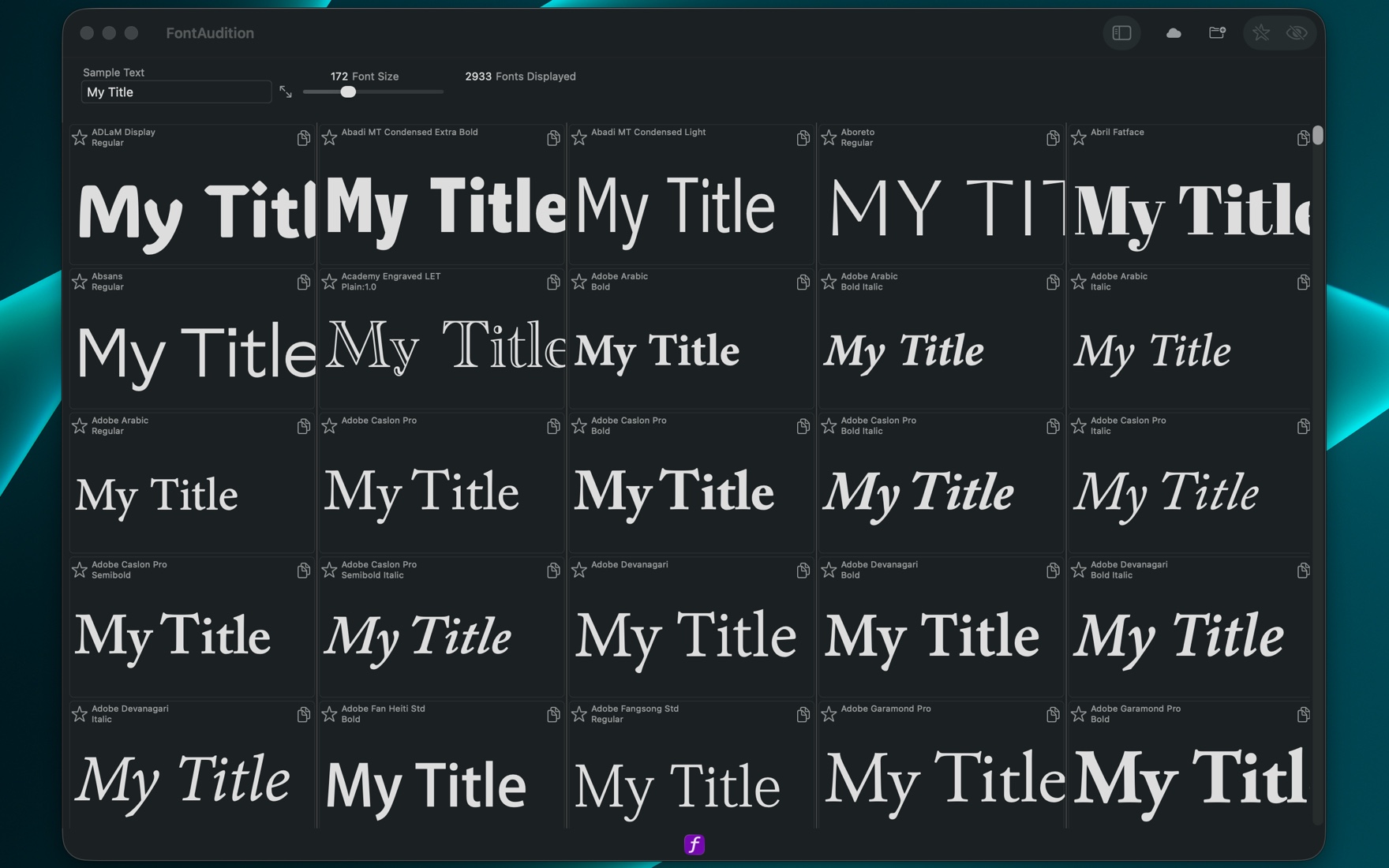
Sample text at the top, size beside it, and a live count of how many fonts survived your filters. Here that is 2,933 faces all setting the same two words at 172 pt.
FontAudition Desktop guide
A font menu shows you names. FontAudition shows you your own text, in every face on your Mac, at the size you are working at — then lets you drag the one you picked straight into the app you are designing in. This guide walks through how that works, step by step.


The walkthrough
Whatever you put in the sample text field renders across the whole grid as you type — the real headline, the client's name, the awkward word with the ligature in it. Presets are one click away for pangrams, the full alphabet, numerals and currency, accented Latin, and Lorem Ipsum, and a larger editor opens if your sample runs to several lines. Your sample text is still there the next time you open the app.
Preview size runs from 32 to 500 points on a slider or by typing an exact number, and the grid can be anywhere from one to eight columns wide. Small and dense to scan a library, or one enormous column to judge a display face the way it will actually be seen.
Search by name with multiple words at once. Filter by style classification — sans serif, serif and its sub-classes, monospace, display, handwriting, ornamental, symbols — which still works on the many fonts that carry no classification metadata, because the filter falls back to reading the name. A running count tells you how many fonts survived every filter you have applied.
One checkbox removes every font missing the glyphs for your sample — the single most useful filter in the app the moment your text has accents, non-Latin characters, or symbols in it. Fonts with partial coverage stay visible and render what they can rather than filling the cell with placeholder boxes, and anything that would have rendered as junk says so plainly.
Click any font and the Font Info panel names it precisely: family, style, PostScript name — the one design apps and CSS want — file format, and where the font came from, whether that is the system, a folder you connected, or Google Fonts. Double-click instead and you get the full character sheet: every glyph the font covers, at a size you control, each one copyable on its own.
Star fonts as you go, then save the starred set as a named Collection — Client Rebrand, Documentary Lower Thirds, whatever the job is. Collections can be added to, duplicated, and deleted, there is no limit on how many you keep, and they are still there next time. Deleting a collection never touches the fonts themselves.
Pick up a font tile and drop it into your design. What lands is your sample text, set in that font, at that size — not a font name you then have to go and find in a menu. What form it arrives in depends on where you drop it, and the app decides that for itself.
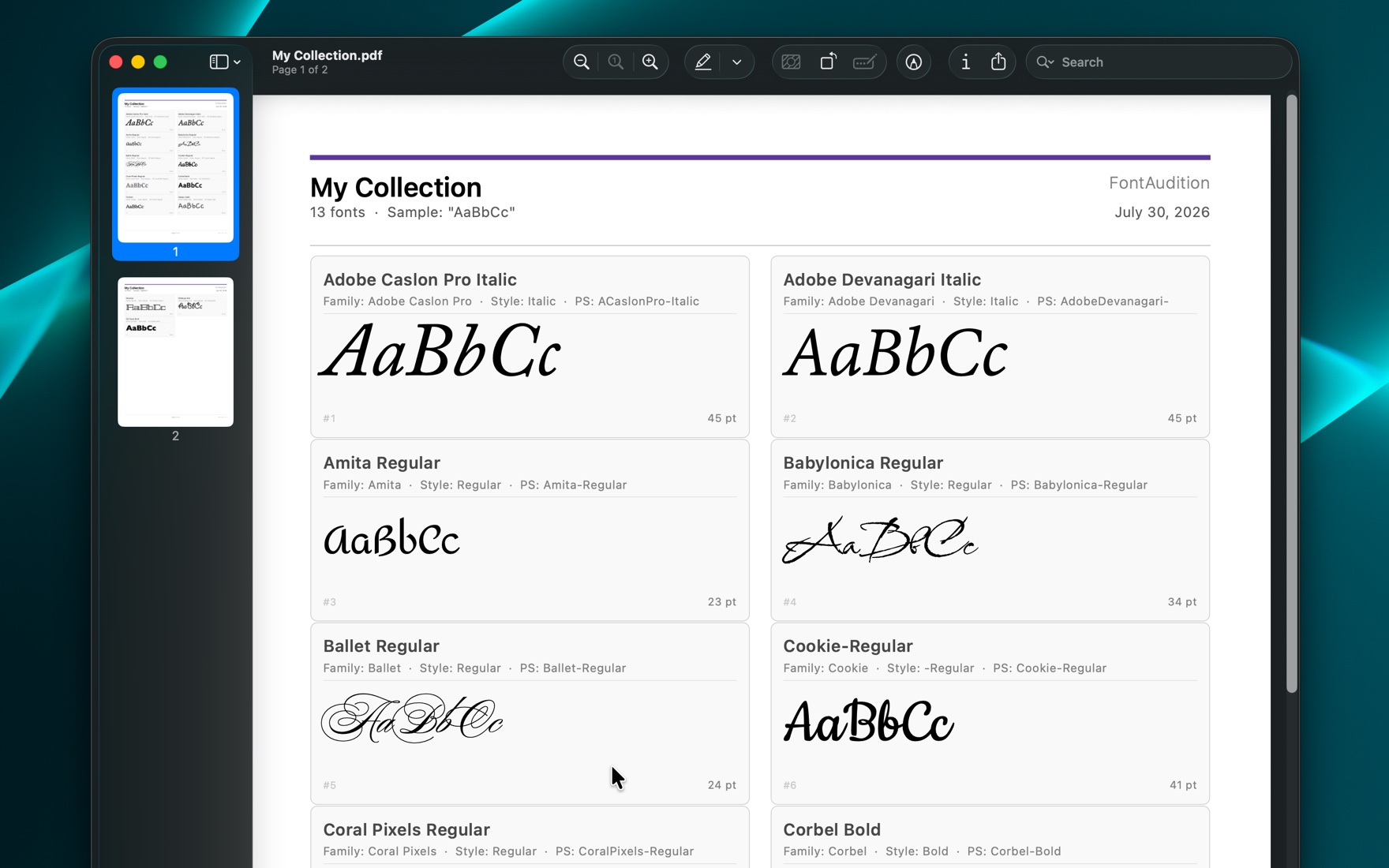
Export a collection as a PDF font sheet — a printable contact sheet with every font's name, family, style and PostScript name, a character specimen, and your sample text set in each one — or as a plain text list of font names for a spec document or an email. The PDF opens as soon as it is written.
Screenshots
Captured on a Mac with a little under three thousand fonts installed — browsing, looking closer, finding more fonts, and getting the chosen one out. Every shot links to its full resolution, so the interface is legible if you want to read it.
Sample text at the top, size beside it, and a live count of how many fonts survived your filters. Here that is 2,933 faces all setting the same two words at 172 pt.
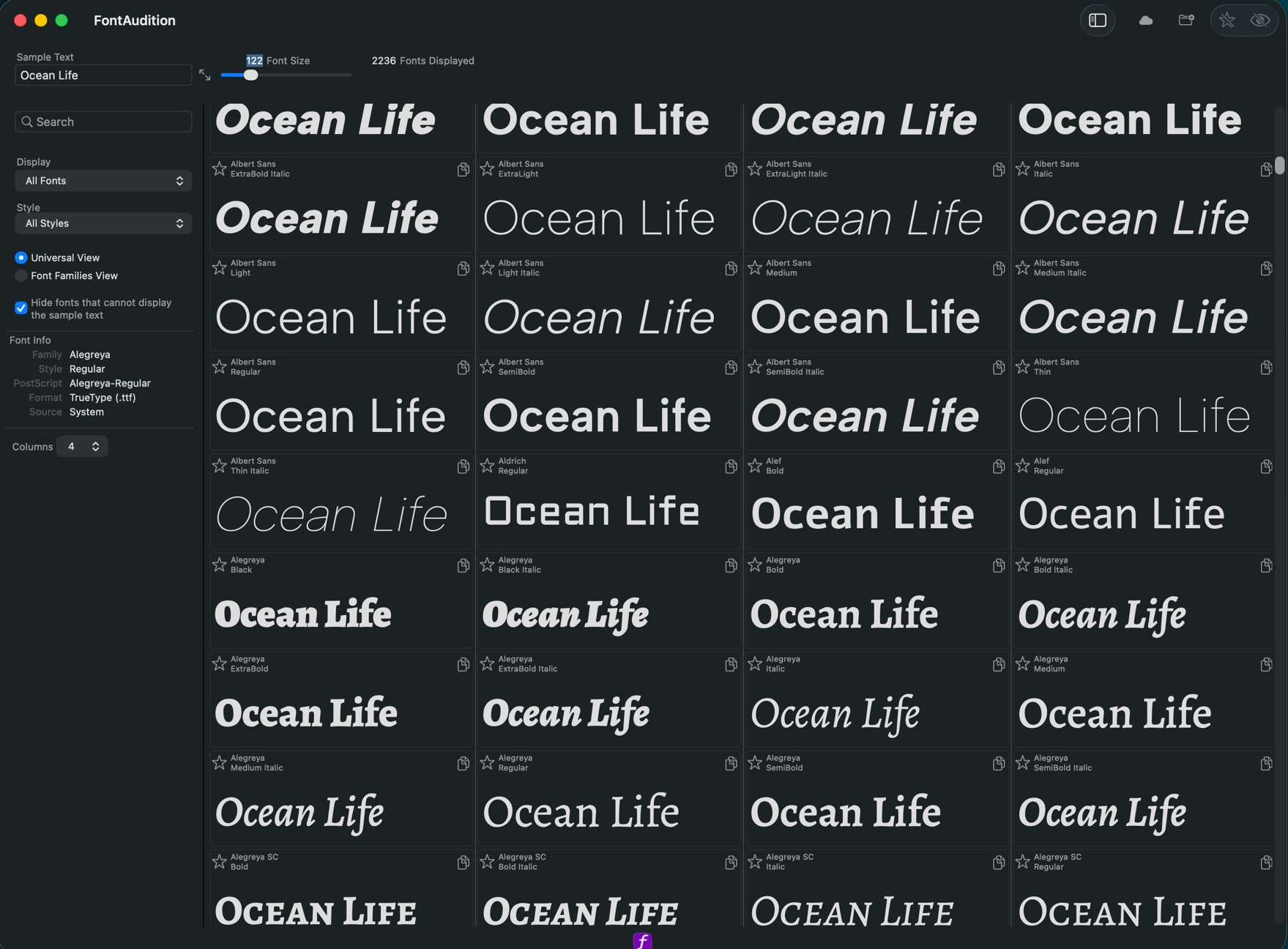
Search, the Display and Style filters, the two browsing modes, the glyph-coverage checkbox, and the Font Info panel naming the selected face down to its PostScript name and where it came from.
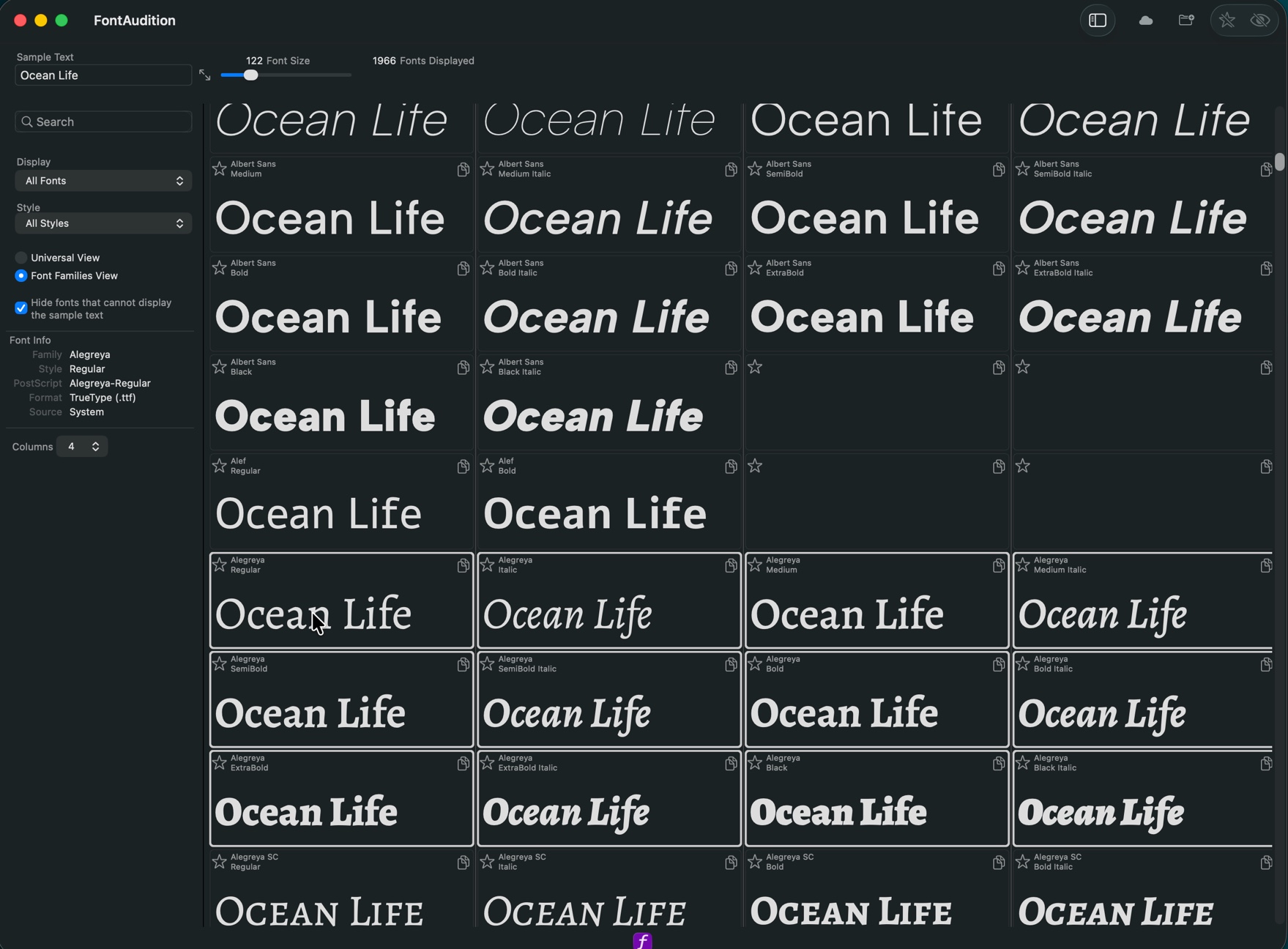
Switching modes regroups the grid so each family starts on its own row. Click any weight and the whole family lights up at once — and the count drops, because this view is for families with more than one weight.
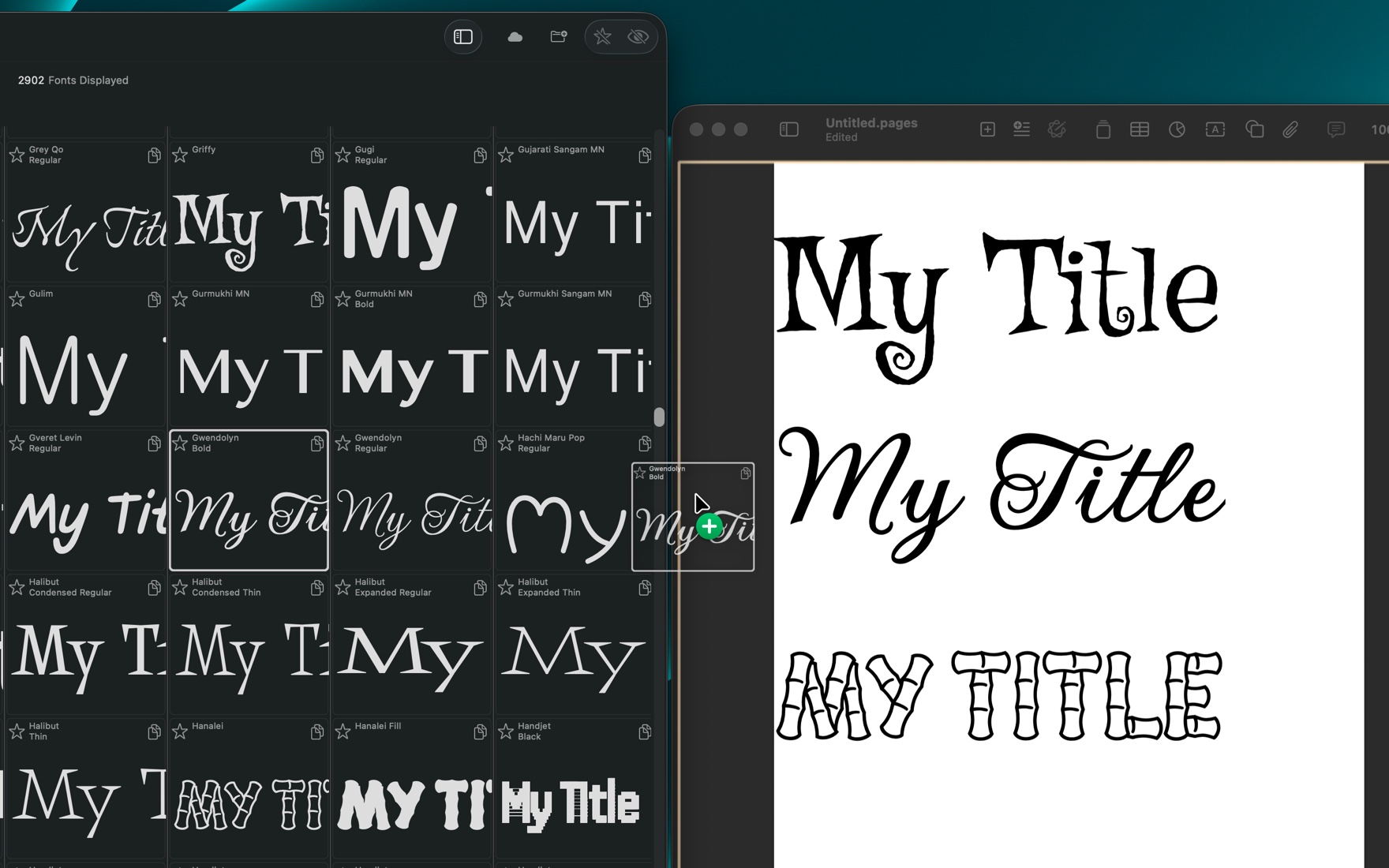
Double-click any tile for the full character sheet, at a size you set, with a copy button on each glyph — the quickest way to check a font really carries the accent or symbol your text needs.
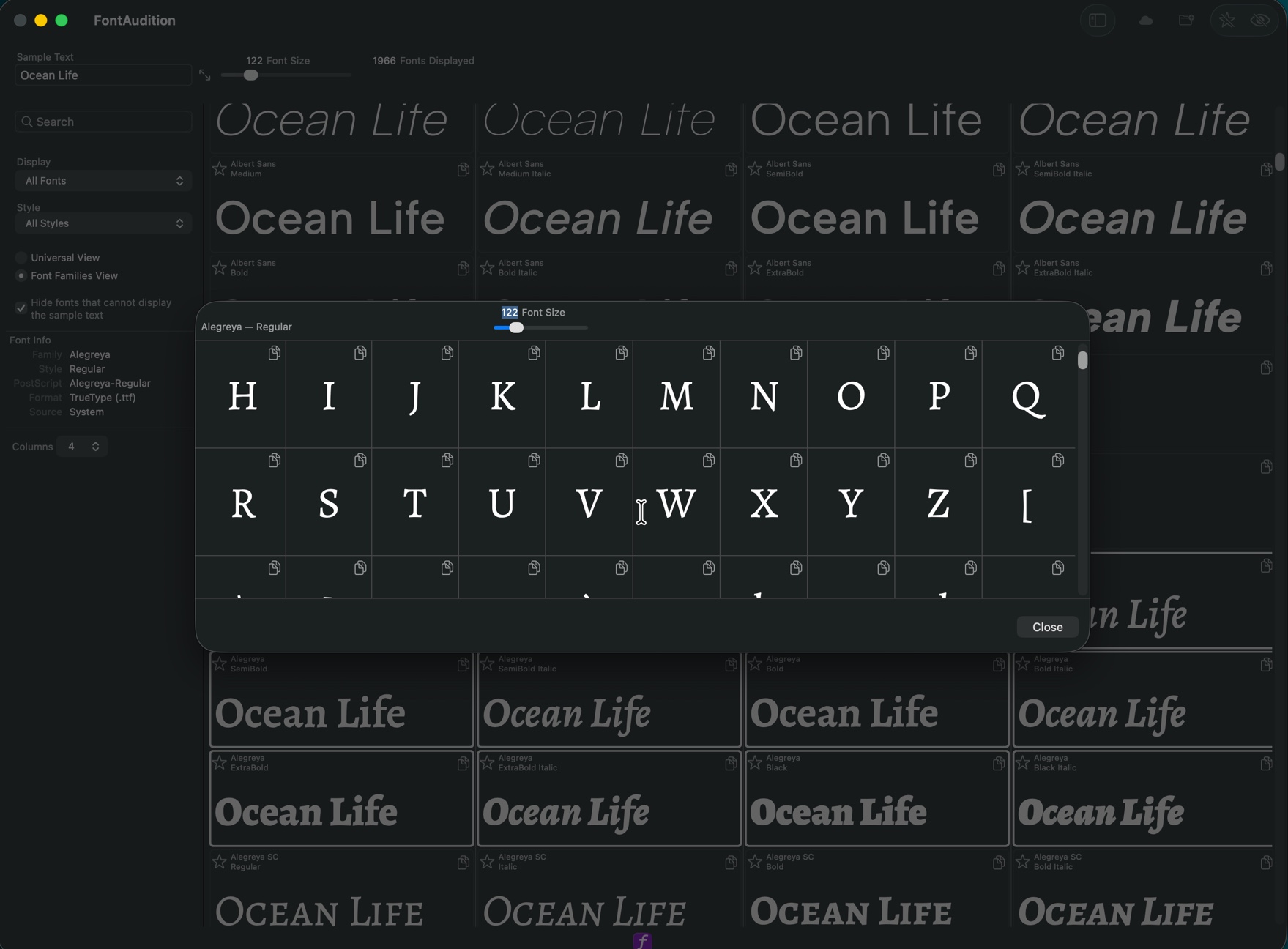
Google Fonts is built in — browse roughly 1,900 open-source families and install them from inside FontAudition. Six further free libraries are listed beside it, each opening in your browser.
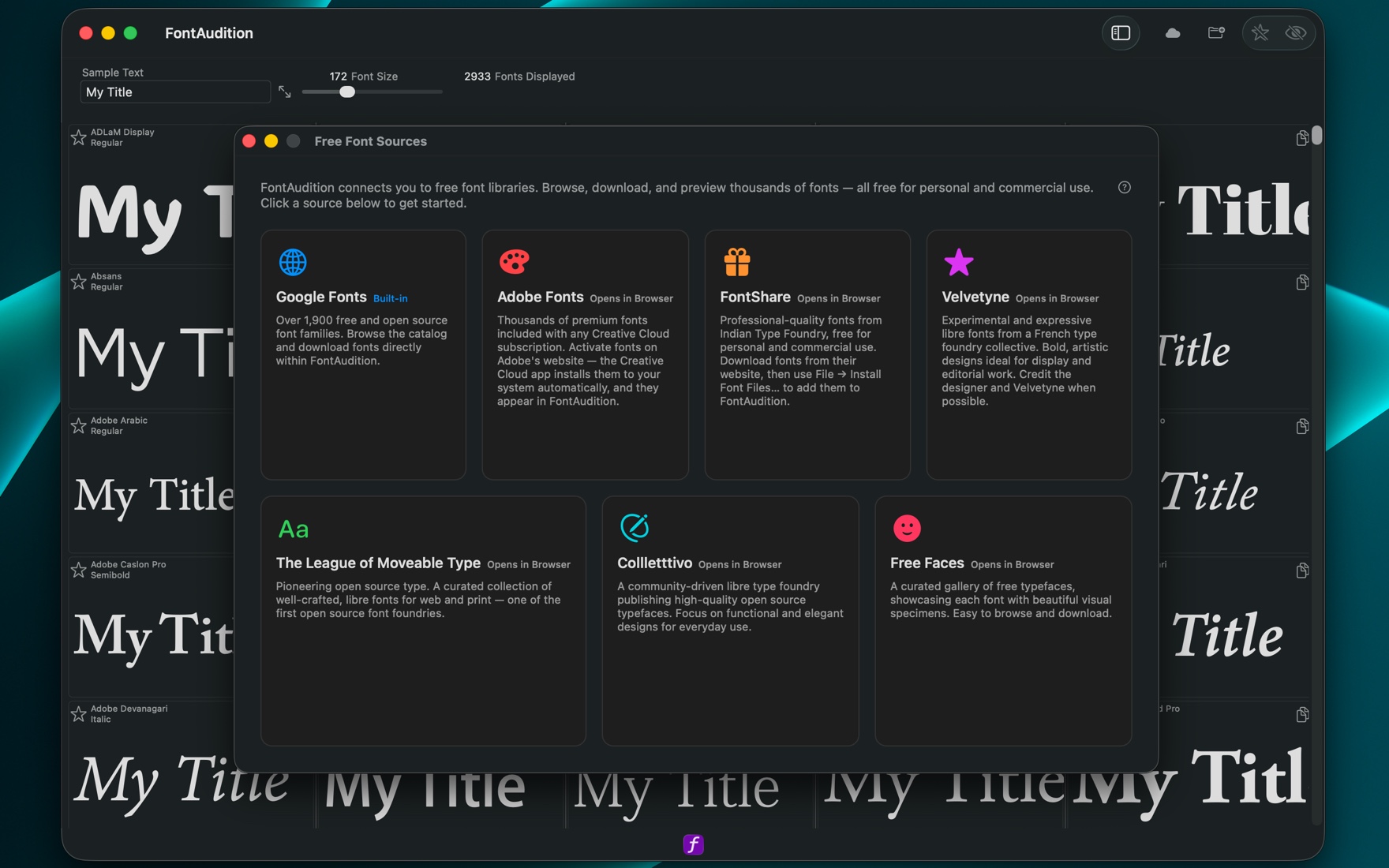
A font server mounted as a network volume, connected and set to reconnect on its own. Nothing is copied or installed — the fonts are simply readable inside FontAudition while the volume is there.
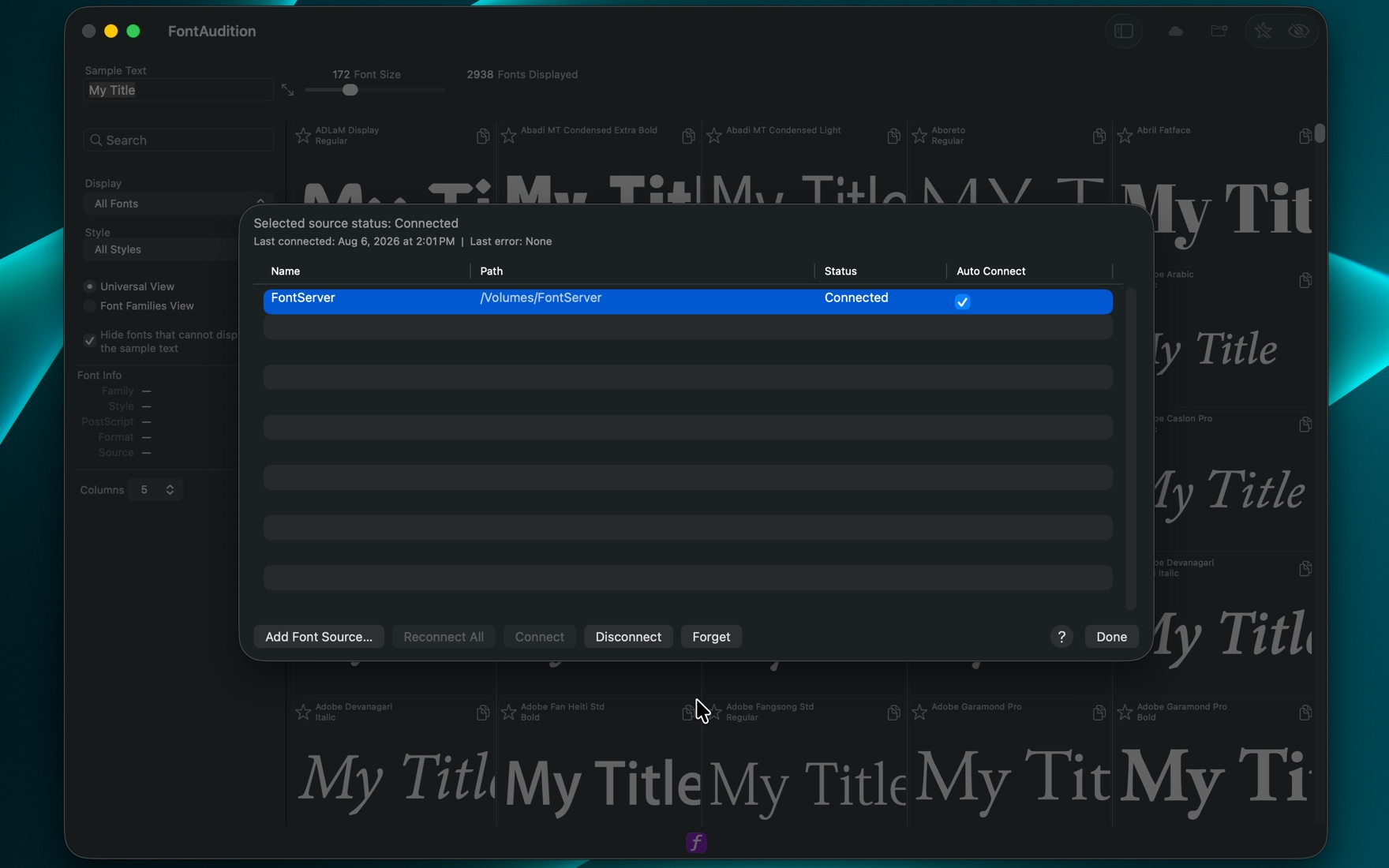
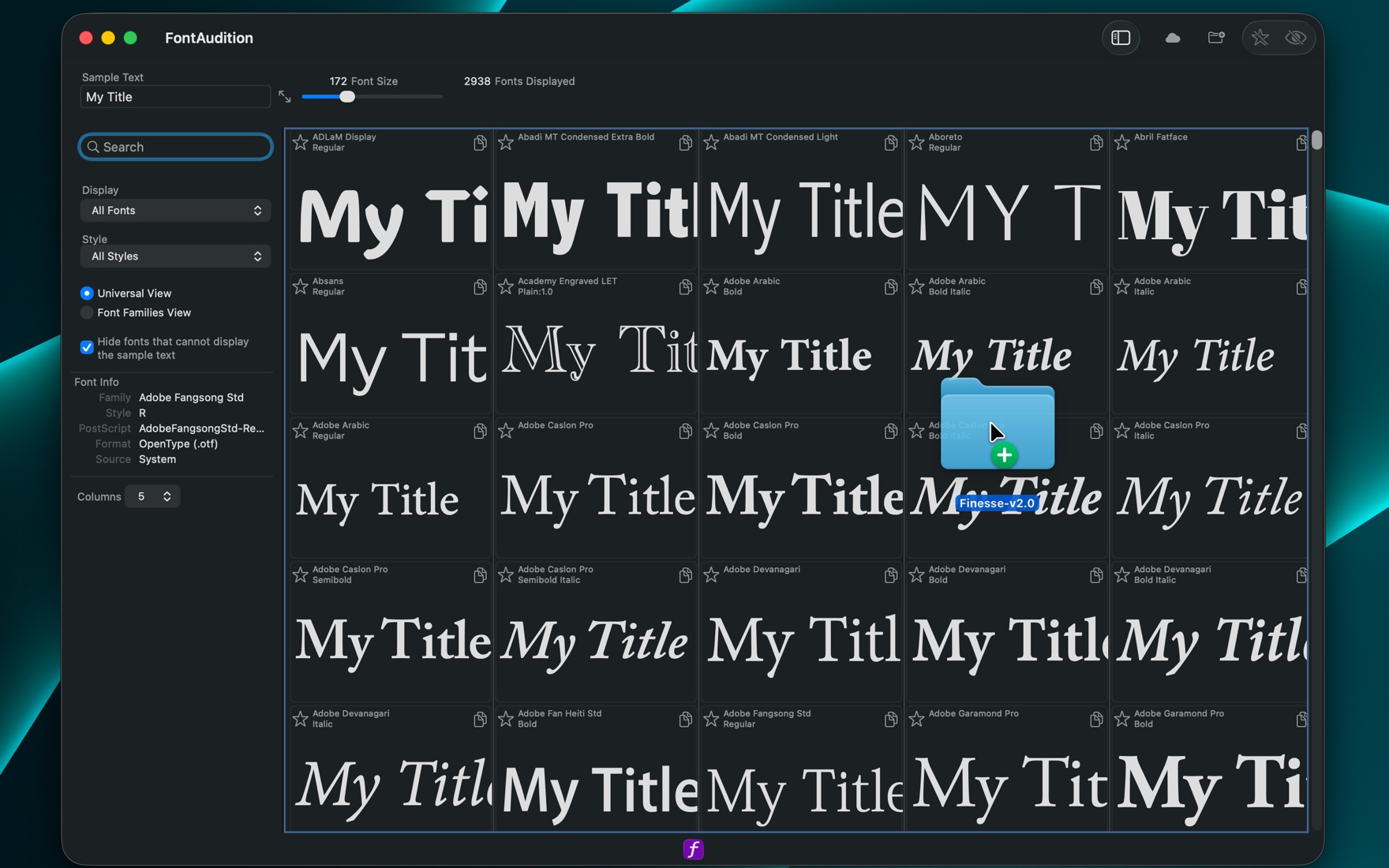
A font tile dragged out of the grid and into Pages, arriving as styled text already set in that face — no retyping, and no hunting for the name in a font menu.
A collection exported as a PDF contact sheet: every font named with its family, style and PostScript name, a character specimen, and your sample text set at a size that fits.
Two ways to look
The same fonts, laid out for two different questions. Switch between them whenever, and jump straight from a font in one view to that font in the other.
Regular, Bold and Oblique each get their own tile, sorted alphabetically. This is the view for the question "what have I got, and does any of it look right?" — a flat, uninterrupted scan of everything installed, including families that only ship one weight.
Families with more than one weight are gathered together and start on a fresh row, so nothing else crowds the comparison. This is the view for "does this family have the range this job needs?" — and it groups intelligently enough that Roboto Condensed Light sits with Roboto Condensed. Click one weight and the whole family highlights at once.

The part that saves the most time
Auditioning is only half the job — the choice still has to get into the artwork. Drag a font tile out of FontAudition and your sample text arrives already set in that font, in whatever format the receiving app understands best. You are not retyping anything, and you are not hunting through a font menu for the name you just decided on.
Live vector artwork with the font's real metrics, cropped tight. Drops into Illustrator, InDesign and Preview as something you can keep scaling.
A bitmap of the set text for anywhere a picture is what is wanted — Photoshop and any other app that takes an image on the pasteboard.
Editable text that carries the font and size with it, so Pages, Keynote, Word and TextEdit receive words you can still type into, already styled.
Marked up with the font family and size inline, which is what Figma, Sketch, Canva, Notion and Google Docs read when you drop into them.
Drop onto a Final Cut Pro timeline and you get a Basic Title with your sample text already set in that family, face and size — no title to build by hand.
The fallback every app understands, so a drag never simply fails. There is also a copy button on each tile when the clipboard is the shorter route.
Where the fonts come from
FontAudition shows the fonts installed on your Mac, and gives you two ways to widen that: a free library built into the app, and any folder of fonts you already keep somewhere else.
Around 1,900 free, open-source families are browsable inside the app — searchable, filterable by category, and readable offline because the catalog ships with the app. Click a family and it downloads just enough to show you, in FontAudition only; look at fifty and close the window and nothing is left behind. Install the ones you want and every weight comes down and becomes available everywhere on your Mac. Beyond Google, a Free Font Sources panel points at six more reputable free libraries.
Point FontAudition at a folder of fonts — on your Mac, on a drive, or on a NAS or file server — and it reads them without installing anything or copying them anywhere. Sources reconnect on their own when you plug the drive back in or mount the share, and a font whose drive is currently missing tells you which source it is waiting for rather than silently disappearing. When you do want a font installed properly, drop it on the window: it goes system-wide, shows up in Font Book, and duplicates are skipped rather than piling up.
Smaller things that add up
Add or remove fonts in Font Book while FontAudition is open and the grid updates on its own. No relaunch, no refresh button.
Hide any font or whole family from your grid without uninstalling it — useful for the hundreds of system faces you will never set type in. A Hidden Fonts panel brings back anything you change your mind about.
Fonts you installed and Google families you downloaded can be removed from inside the app, with a clear warning first. System fonts and fonts living in a folder you connected are never deletable, because they are not FontAudition's to delete.
Seven short steps that point at the real controls and explain what each one is for, available any time from the Help menu rather than only on first launch. Fuller written help, including guides to font sources and installing, sits alongside it.
Feedback
FontAudition Desktop is on the Mac App Store now — and the apps it should drop cleanly into and the problems it should solve are still worth hearing about. If you have a type workflow you would want it to fit, get in touch.