裁剪源
CoreTrim 导出每个源用到的部分,并附带您选择的余量。这是节省存储的模式,适用于完成的项目、客户交接, 以及那些用不上的素材不必跟着成片走的长期归档。
CoreTrim 指南
CoreTrim 是一款 Final Cut Pro 工作流程扩展,不是独立的桌面应用。它要求您的 Mac 上已安装 Final Cut Pro。 把项目从 Final Cut Pro 直接拖到 CoreTrim 上;CoreTrim 会分析该项目,复制或修剪源文件, 然后写出一个链接到已导出媒体的新项目导出文件。您的原始资源库、剪辑和源文件都不会被改动。

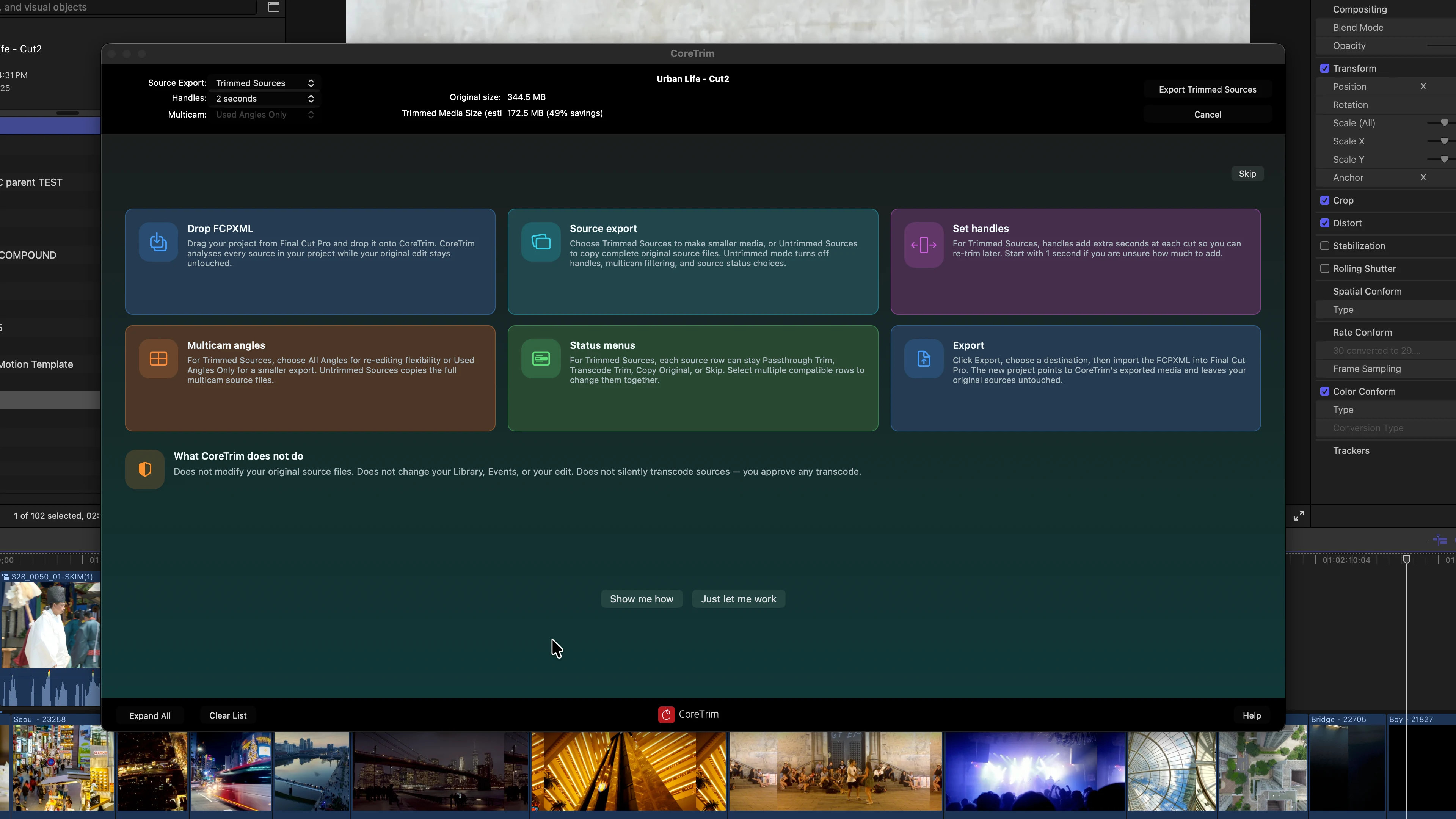
选择源导出方式
CoreTrim 导出每个源用到的部分,并附带您选择的余量。这是节省存储的模式,适用于完成的项目、客户交接, 以及那些用不上的素材不必跟着成片走的长期归档。
CoreTrim 复制项目用到的每一个原始源,并让导出项目指向这些新副本。这样导出项目与原始项目保持一致, 同时原始媒体留在原地。
基本流程
从 Final Cut Pro 中打开 CoreTrim,然后把要处理的项目直接拖到 CoreTrim 工作流程扩展上。 CoreTrim 无需单独的导出步骤即可获得所需的项目数据。
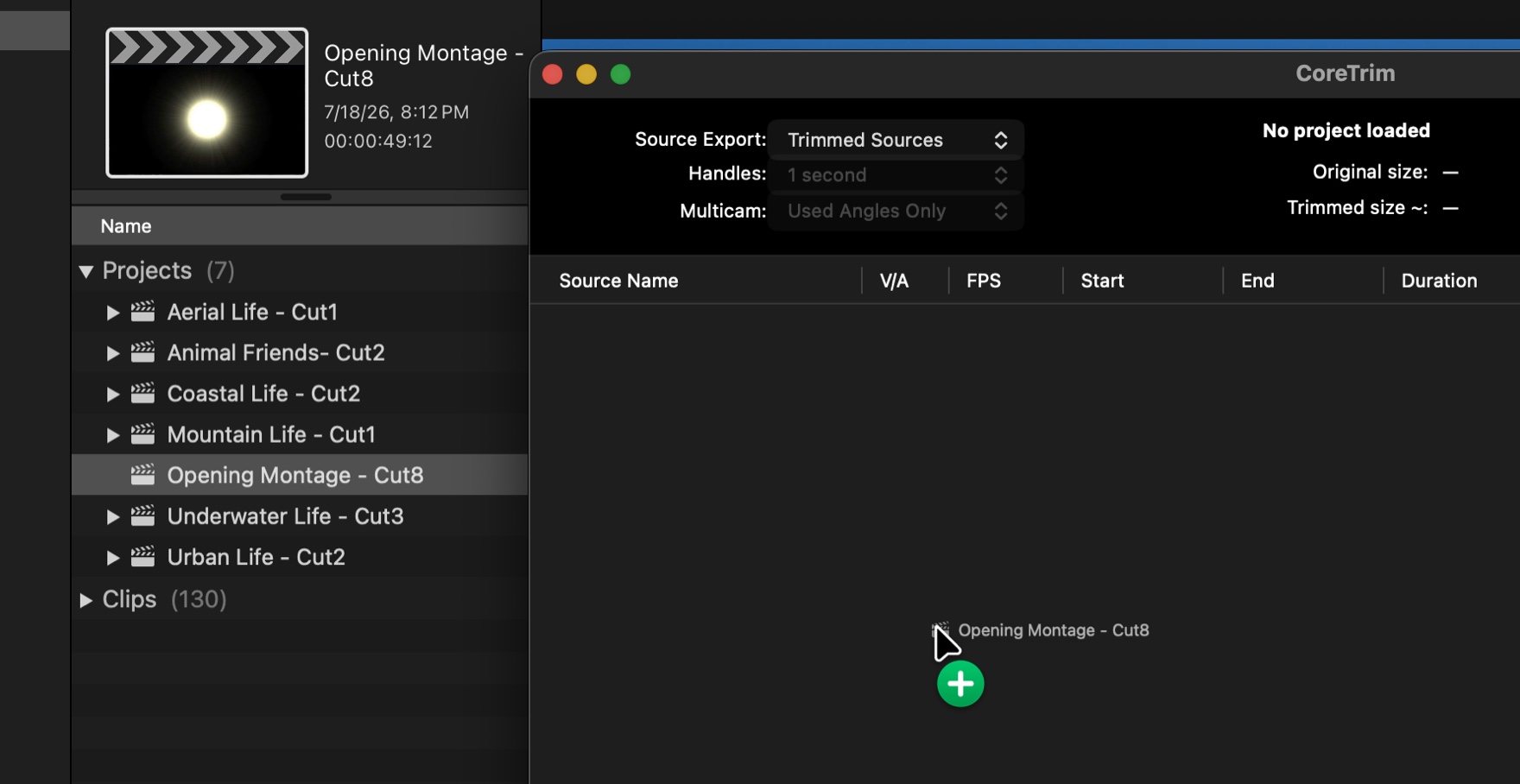
CoreTrim 会读取项目,找出有文件支撑的源,显示原始项目大小,并估算导出媒体的大小。
想要更小的媒体并保留余量时,用裁剪源。想为项目用到的每一个源保留完整副本时,用完整源。
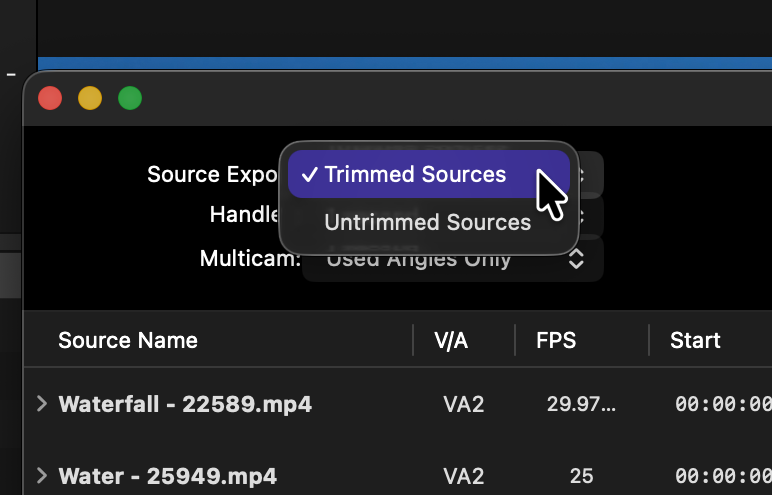
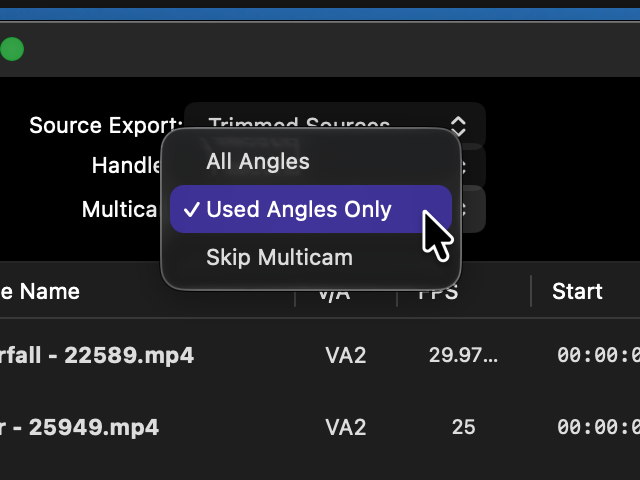
对于裁剪导出,请选择余量长度,以及 CoreTrim 是处理全部多机位角度还是只处理成片中用到的角度。 导出完整源副本时这些控件会被锁定,因为无需做任何修剪决策。
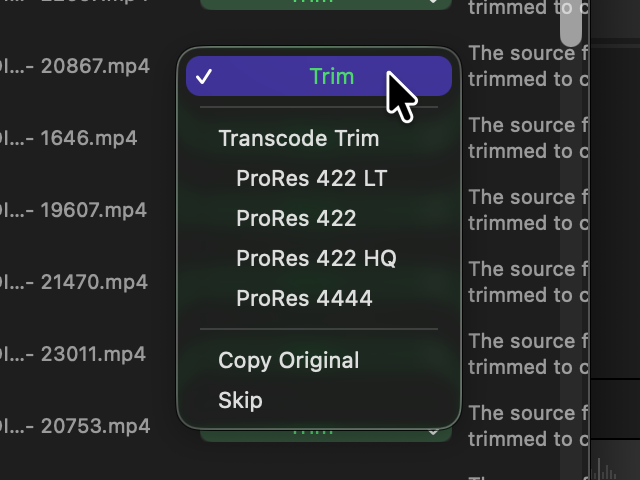
每个源都会显示 CoreTrim 可用的最安全操作:修剪、转码修剪、复制原始或跳过。 只在您确有理由推翻自动选择时才更改某个源。
CoreTrim 会在您选定的目标位置写出新媒体和新的项目导出文件。进度文字会显示 CoreTrim 正在修剪还是复制每个源。
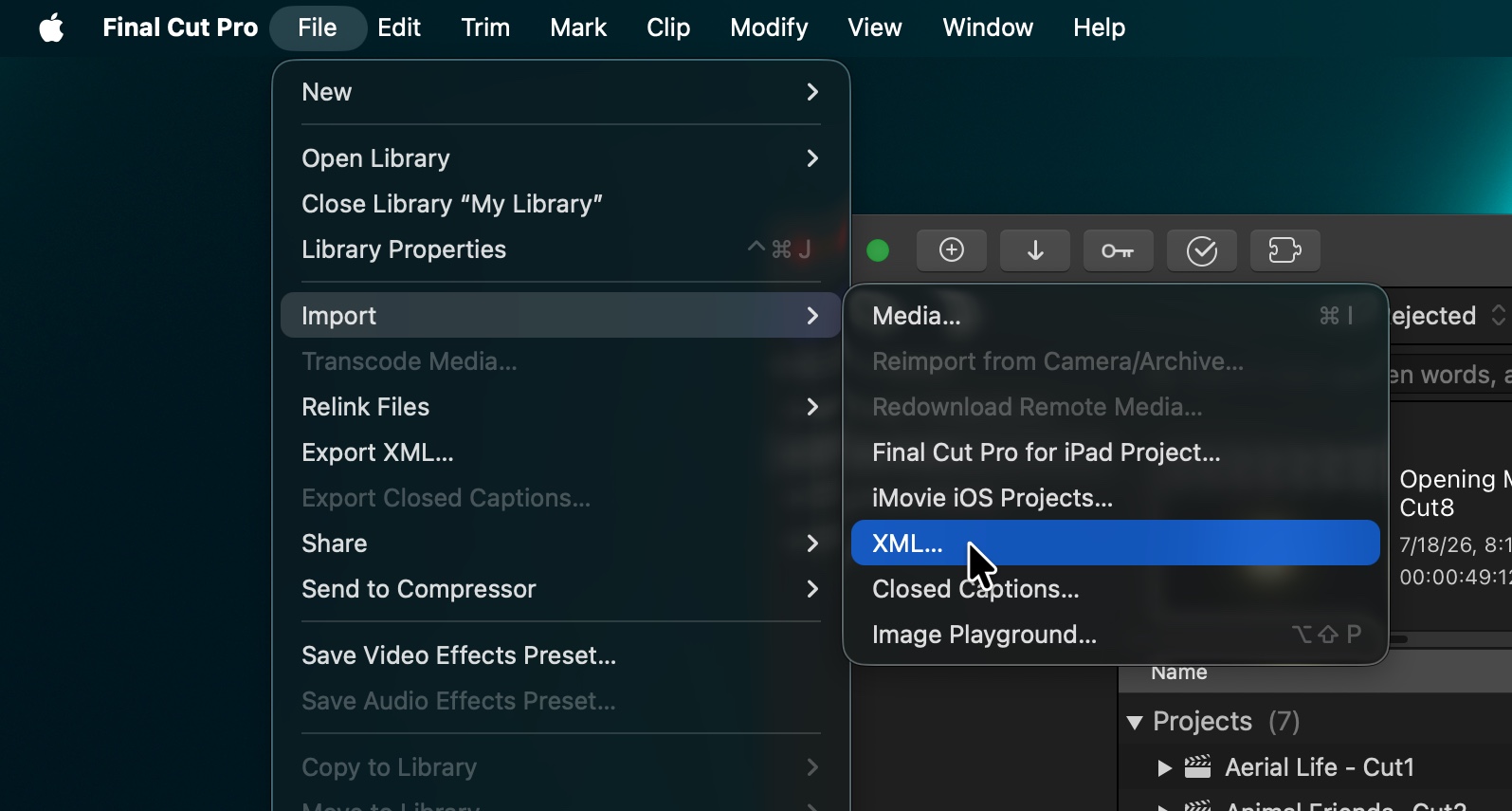
把导出的项目导回 Final Cut Pro 并检查一遍。新项目应当链接到导出的媒体,而不是您的原始源。
报告会说明哪些内容被修剪、复制、跳过或触发了警告,并为项目导出提供一份源列表。
导出内容
一次导出生成的全部内容都会放进一个新建文件夹,并按您需要的顺序编号。导出的项目只链接到该文件夹内的媒体,因此可以将整个文件夹作为一个整体移动、复制或归档。
1- READ ME.txt该次导出的纯文本说明:如何将项目文件导入 Final Cut Pro、删除或归档原始媒体之前应检查什么,以及文件夹中其他各项分别是什么。它是写给下一个打开此归档的人看的,而那个人未必是您。
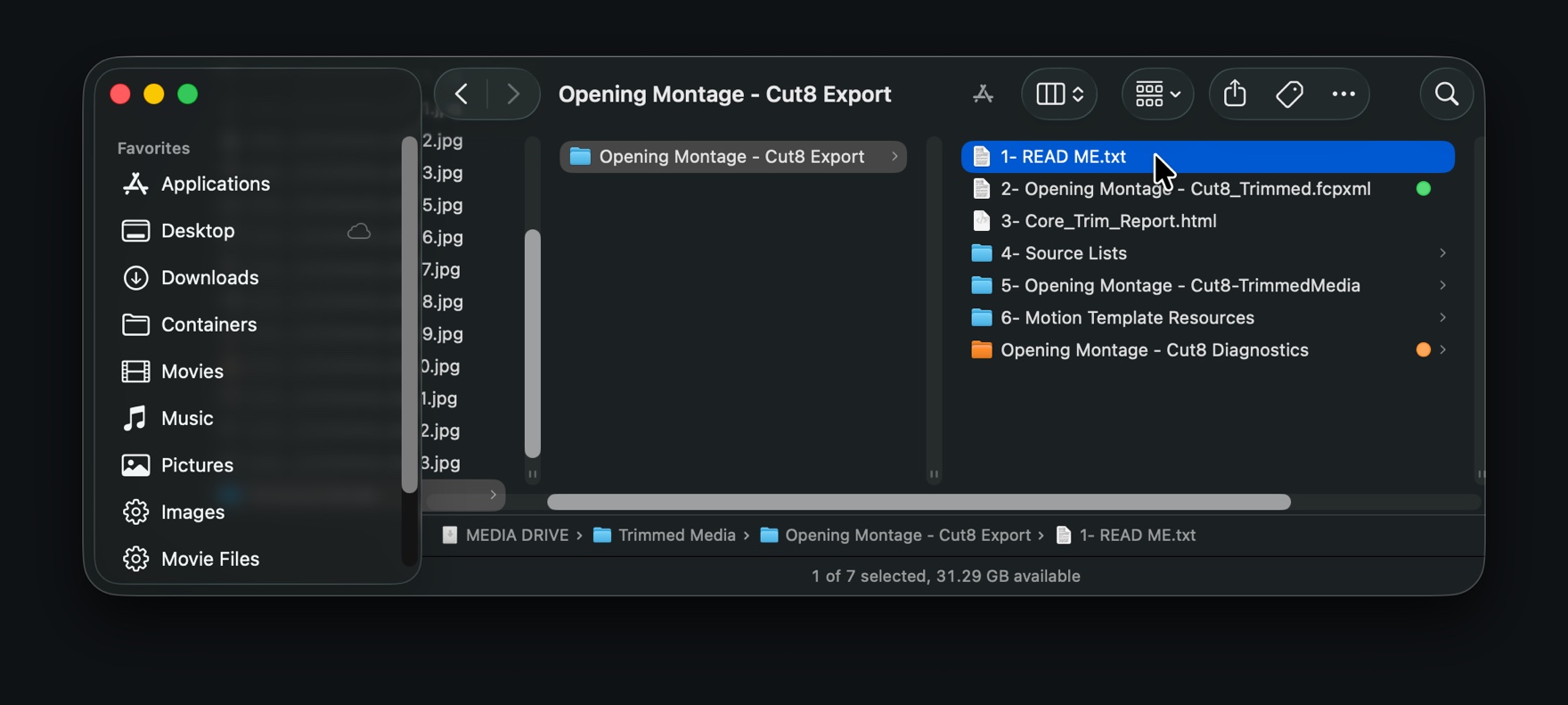
2- <项目>_Trimmed.fcpxml您要导入 Final Cut Pro 的项目文件。它只链接到本文件夹中的导出媒体,绝不会链接回您的原始源文件,因此请让它与文件夹放在一起——单独移走它就无从链接。
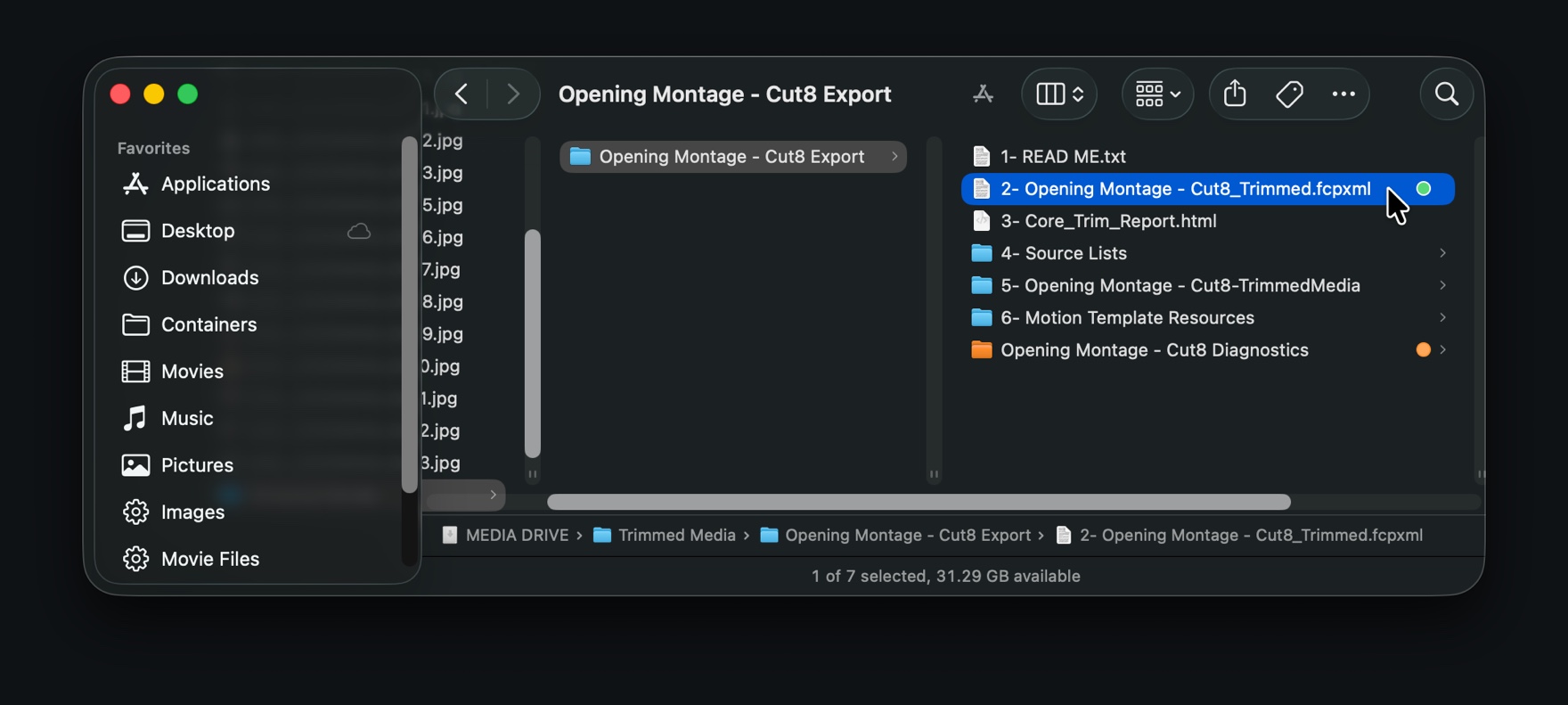
3- Core_Trim_Report.html导出报告,可用任意浏览器打开。它会显示 CoreTrim 如何处理每一个源——修剪、转码、复制还是跳过——以及警告、存储数据和导出项目的源列表。
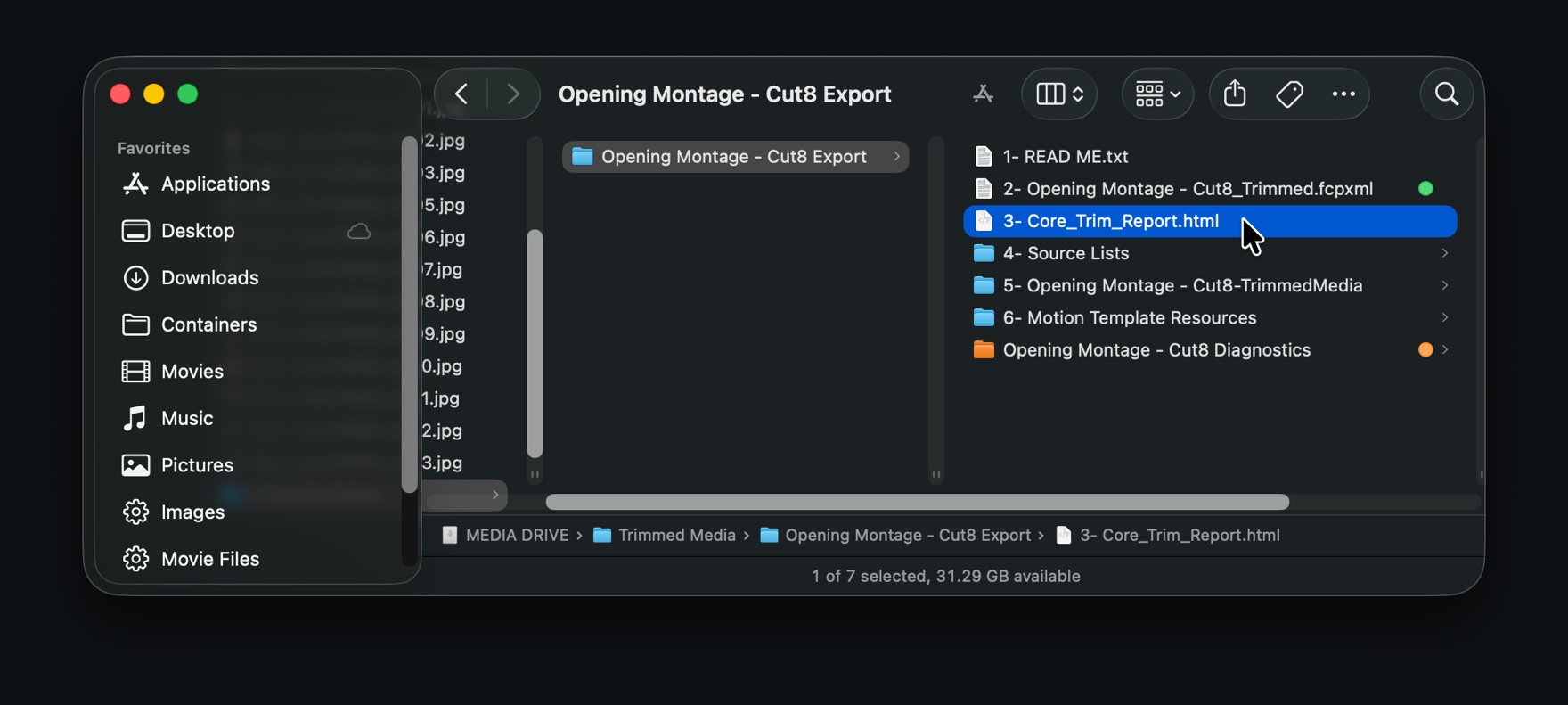
4- Source Lists同一份源列表的两种格式,分别放在 HTML 文件夹和 CSV 文件夹中。HTML 版可在浏览器中排序;CSV 版可用电子表格应用打开,便于交接文档或归档清单。
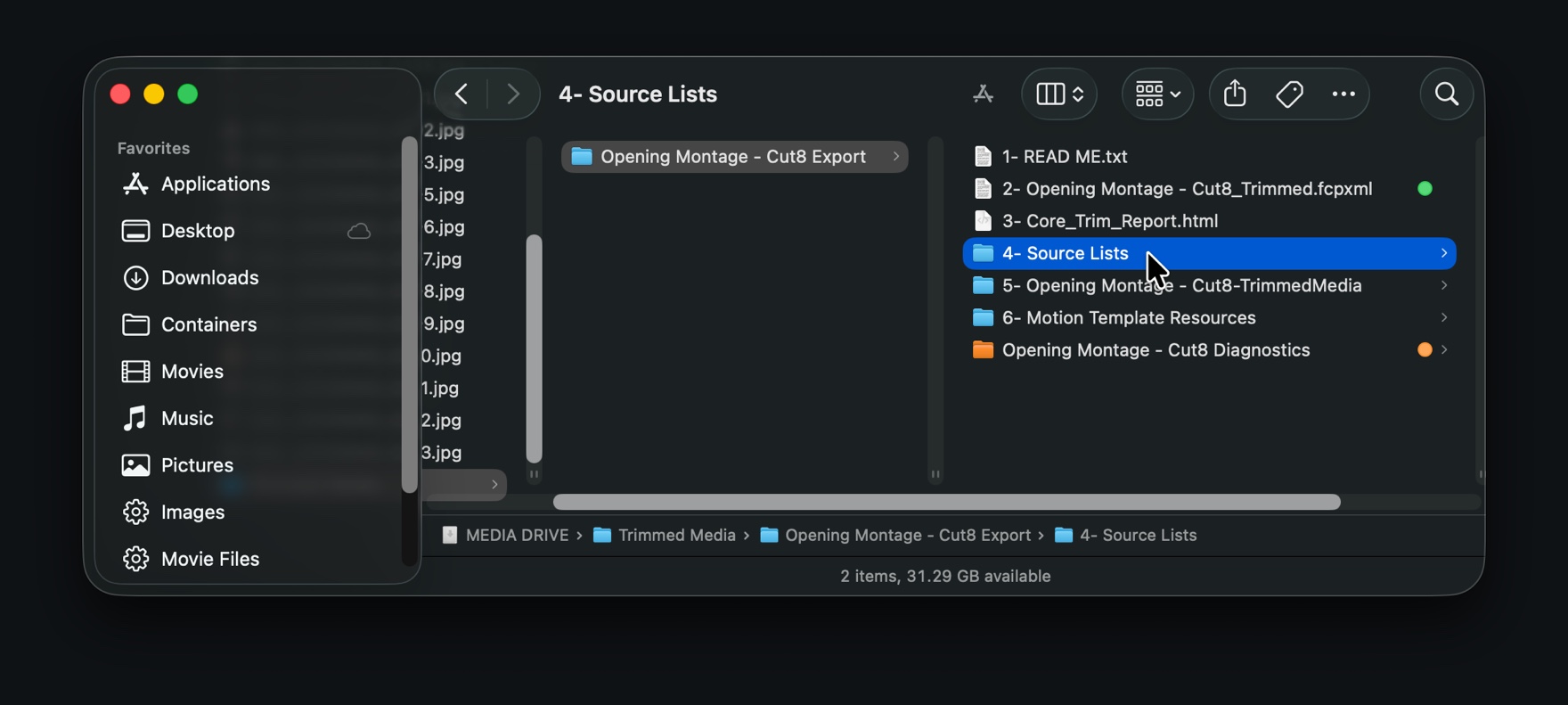
5- <项目>-TrimmedMedia
导出的媒体本身——导出项目所链接的每一个文件。裁剪源导出会将该文件夹命名为 -TrimmedMedia;完整源导出则命名为 -SourceCopies。
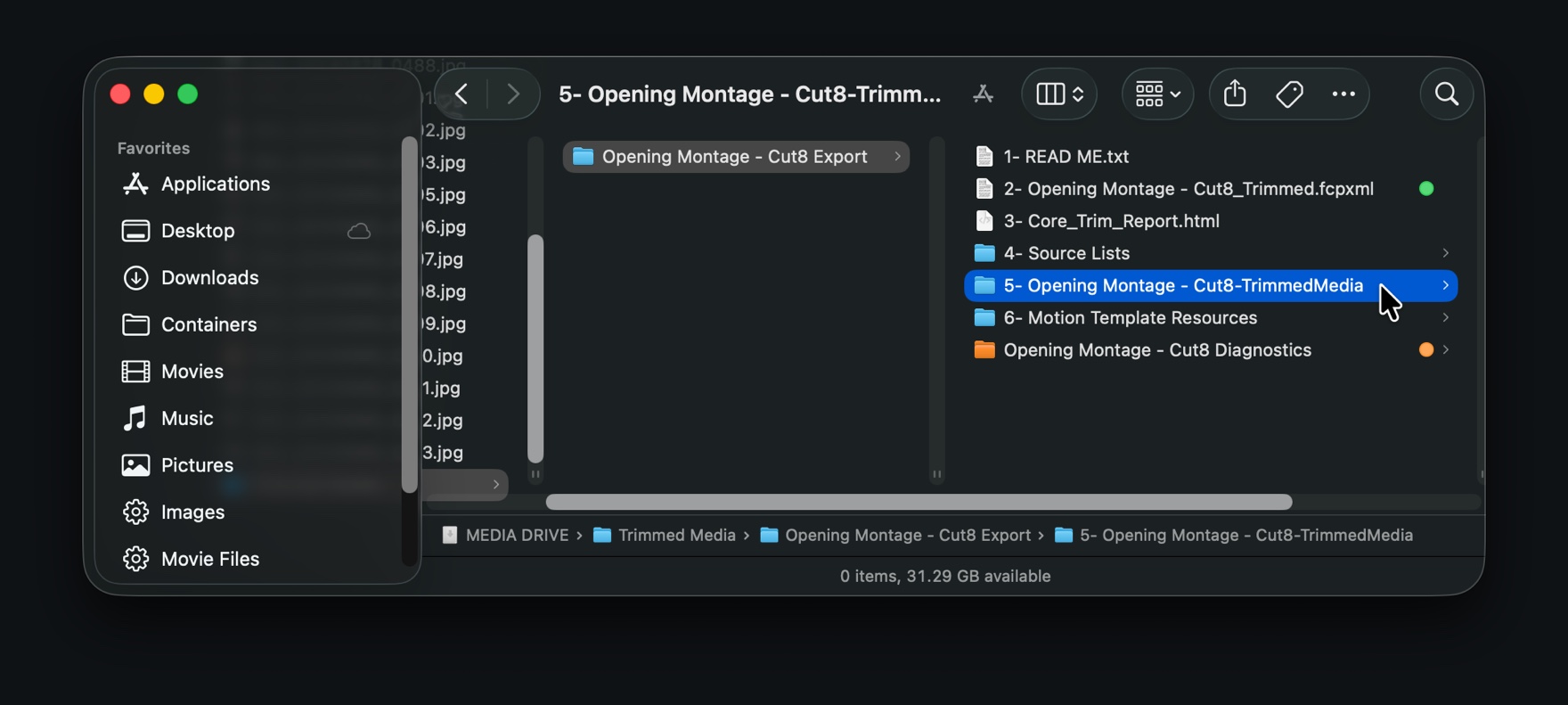
6- Motion Template ResourcesCoreTrim 复制的 Motion 模板,仅在项目使用本地 Motion 模板文件时才会写入。已安装的效果、标题、发生器和转场仍保留为引用,指向打开该项目的 Mac 上所安装的内容,因此不会出现在这里。
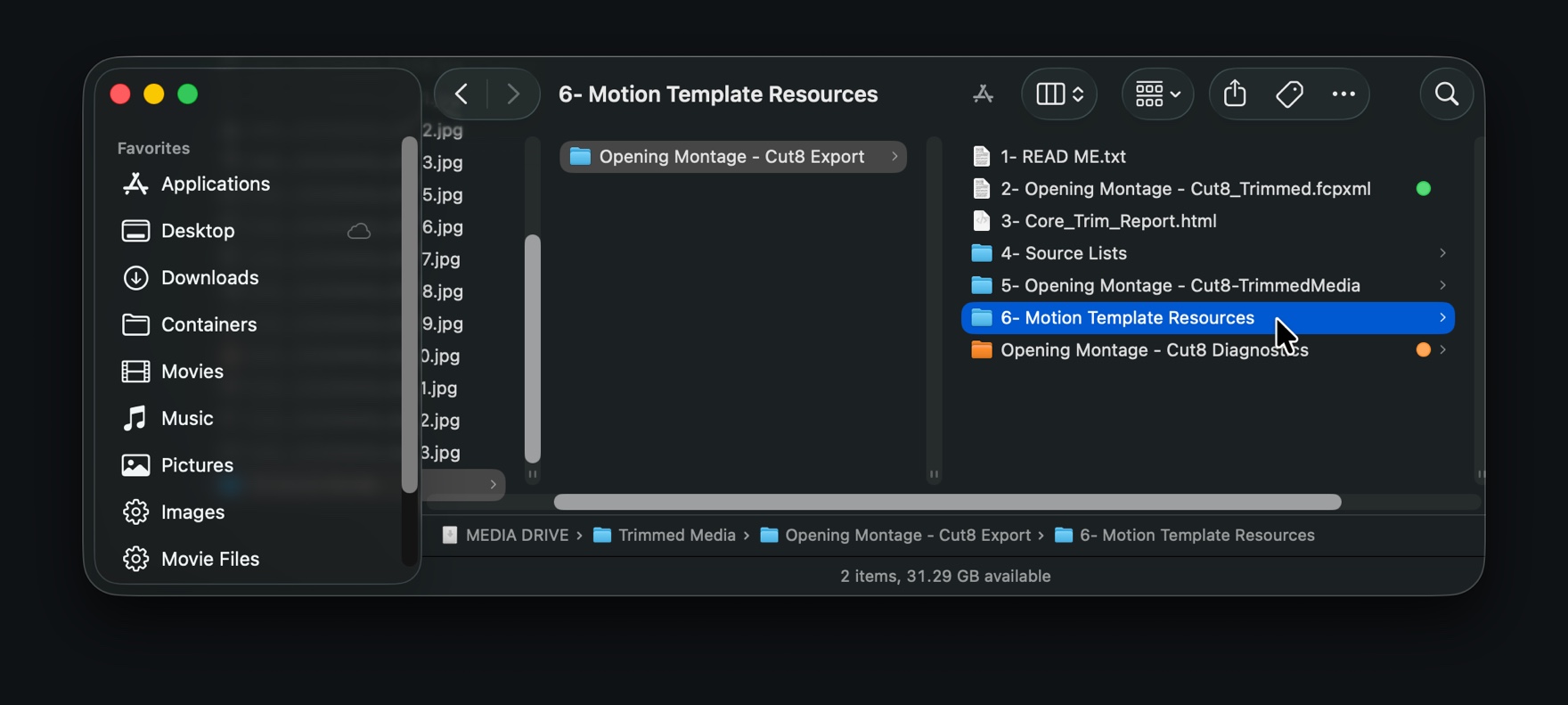
在这些编号项旁边还有一个 Diagnostics 文件夹——在 macOS 26 及更高版本的 Finder 中会标记为橙色——它保存着该次导出的记录。导入时并不需要它,归档时也可以删除,但如果您遇到希望我们查看的问题,它就是唯一需要发给我们的东西。请参阅常见问题中的报告与诊断。
CoreTrim 的安全做法
CoreTrim 不会修改、移动、重命名、重写或删除您的原始媒体文件。
CoreTrim 会写出一个克隆的项目导出文件供您导入。它不会更改您现有的 Final Cut Pro 资源库。
有风险的选择、已跳过的源以及回退为复制的情况,都会在导出前和报告中说明。
CoreTrim 会保留效果、标题、发生器和插件引用。只有在 CoreTrim 能安全定位到模板文件时,才会复制 Motion 模板。